
How to Fix Missing validFrom in Merchant Listings
TL;DR:
- What it is: validFrom is a Product schema property that tells Google when a price becomes valid. Google uses it, with an end date, to describe the period of a sale price.
- Do you need it: Not for every product. Google lists it as recommended, and it applies to sale periods, so don't add it to a product at its normal price.
- How to fix it: Confirm there's a real sale, add validFrom to the correct node (the Offer or the price specification) with a real ISO 8601 date, pair it with an end date, then re-test. An app like JSON-LD for SEO can keep Offer markup accurate automatically.
- What to avoid: Never add a fake date just to clear a warning. It makes your markup less truthful, not better.
Seeing a missing validFrom warning in your Shopify or Google merchant listings data? The right fix depends on whether the price has a validity period at all, and on where that price sits in your structured data.
This guide explains what validFrom does, whether you need it, why the warning appears, and how to fix it correctly, so you end up with accurate markup instead of a meaningless date.
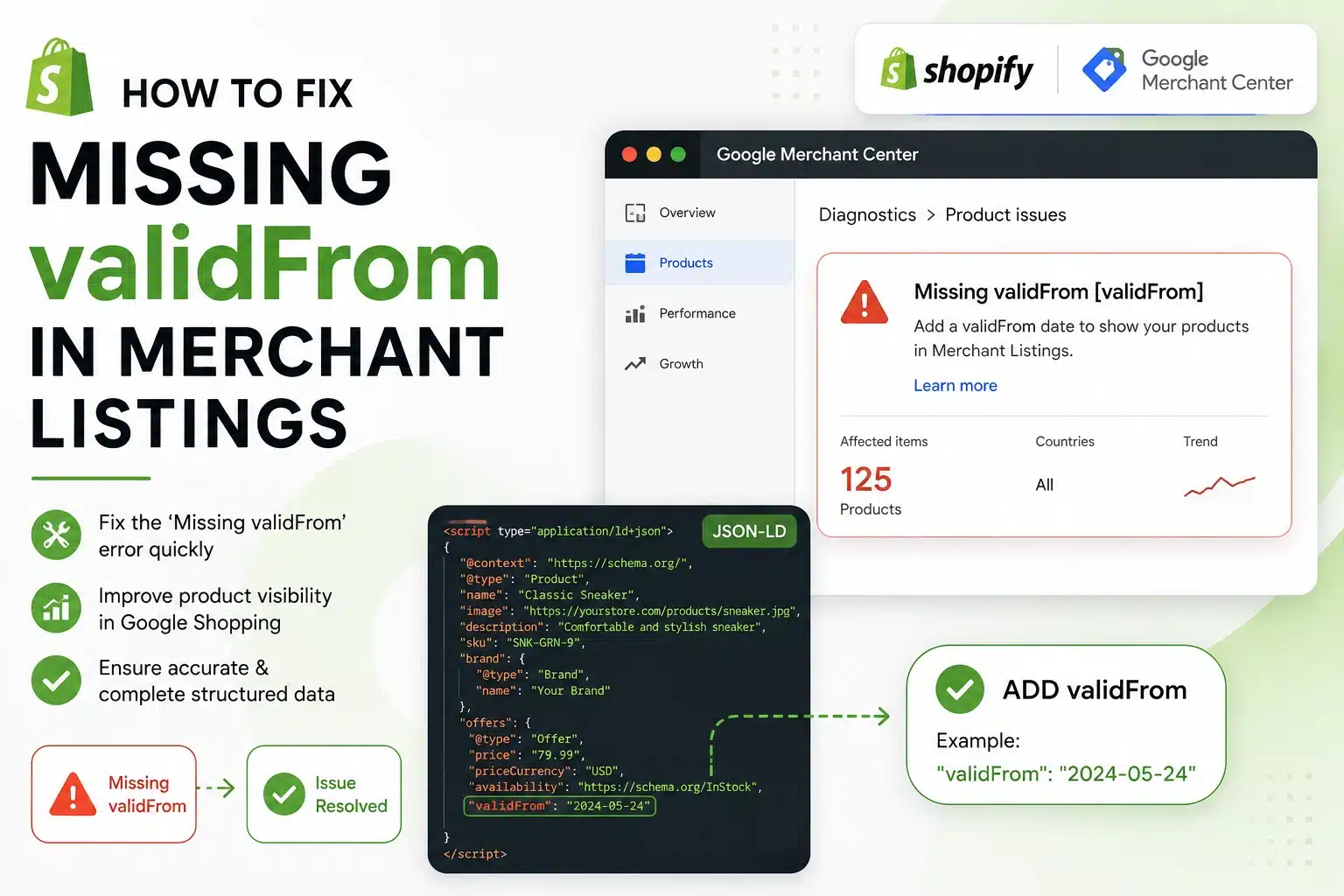
What Is validFrom in Product Schema?
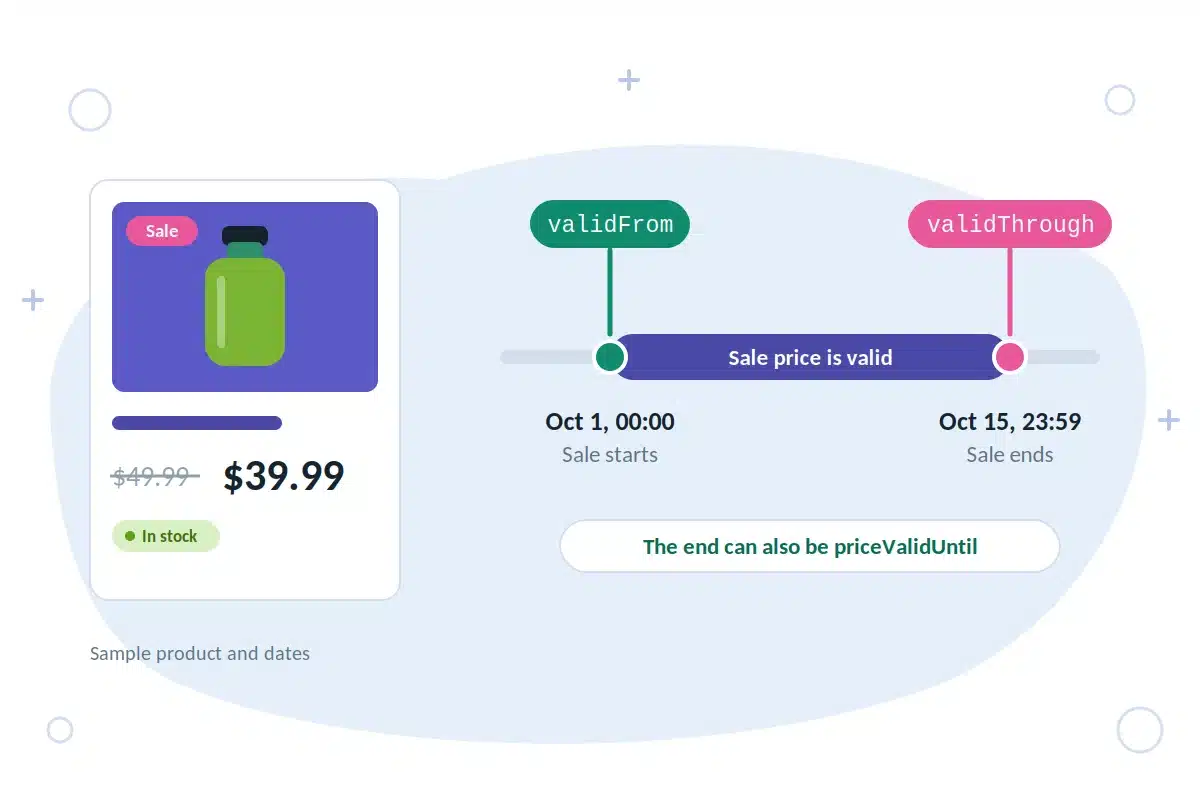
validFrom tells Google when a price becomes valid. In Google's merchant listing documentation it's one of the properties used to describe a sale period. Getting small properties like this right is a classic task for technical SEO services.
- Format: It uses ISO 8601 date and time, for example
2026-10-01T00:00:00+00:00. Google recommends including the time and time zone so there's no ambiguity about exactly when the price starts. - On an Offer: It can sit directly on the Offer when that Offer's price is the active sale price.
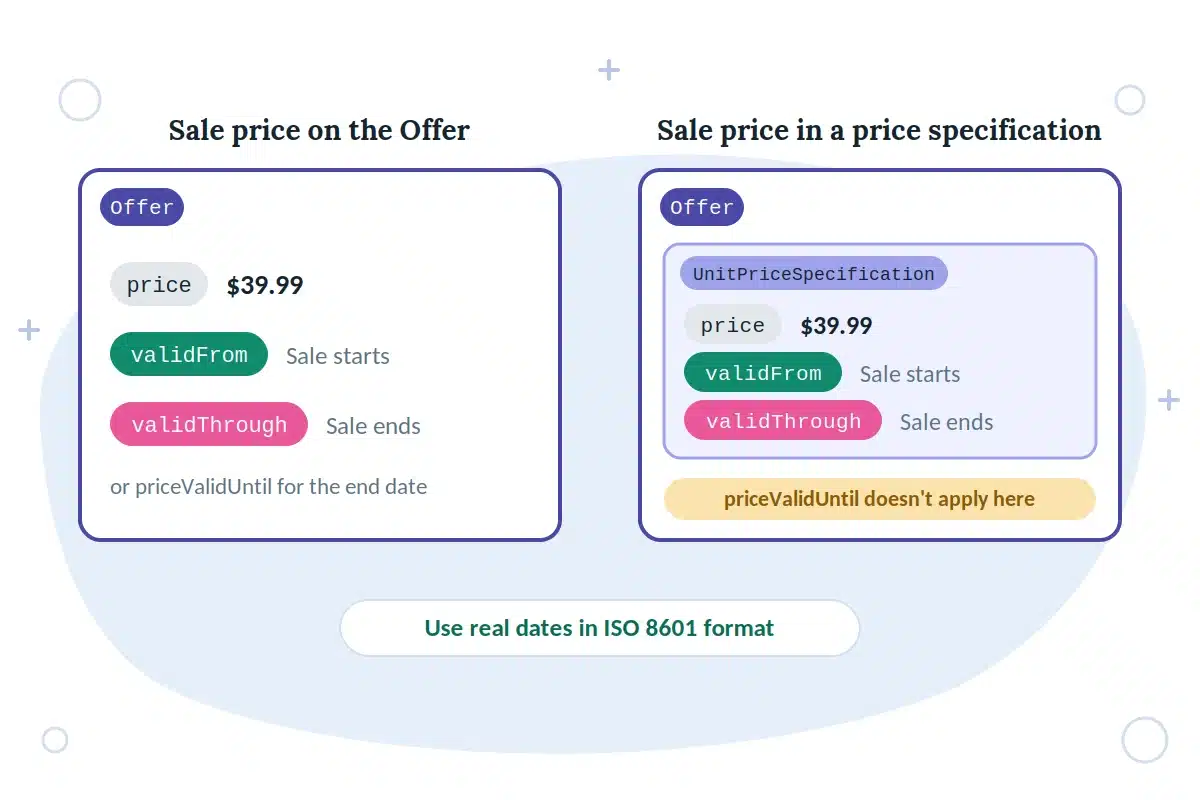
- On a price specification: It can sit on the UnitPriceSpecification that holds the sale price, when the sale price is defined there instead.
Google currently lists validFrom as a recommended property, not a required one. That matters for the next question.
Is validFrom Required for Every Shopify Product?
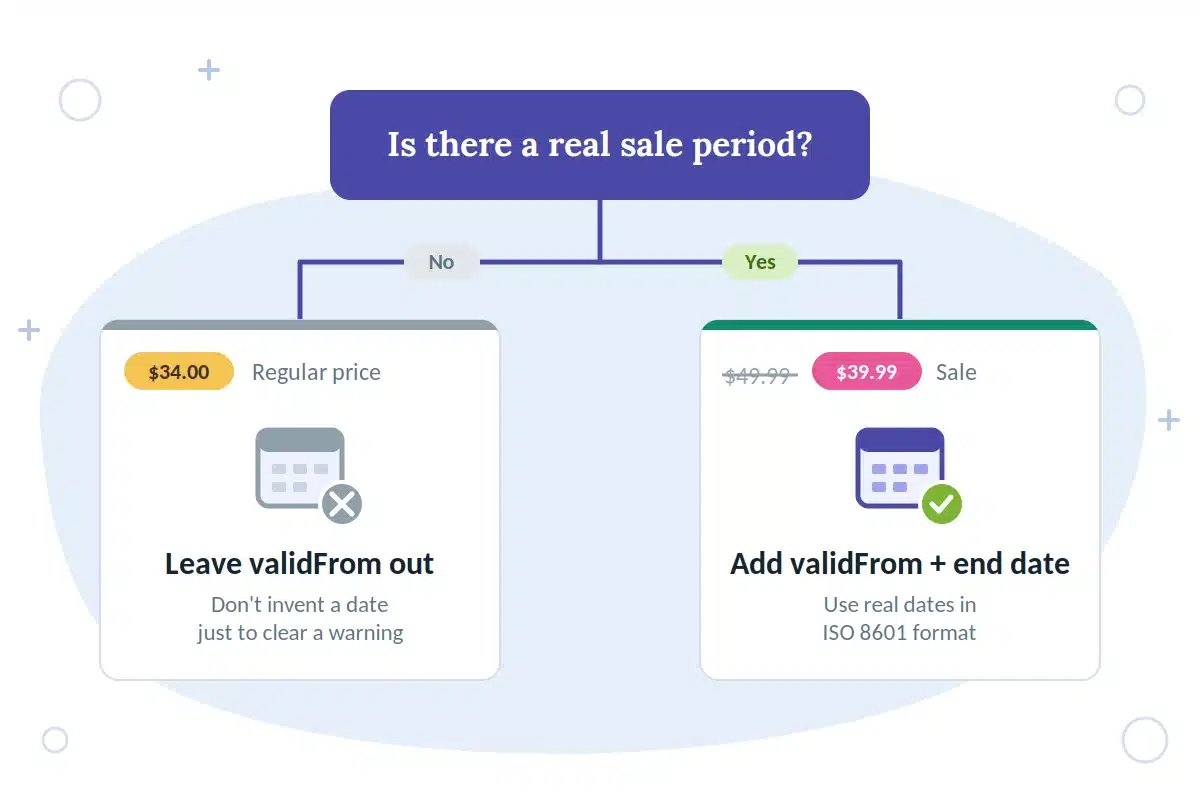
No. validFrom relates to sale-duration information, not to every product that happens to have an Offer. A Shopify SEO services review can quickly tell you which of your products actually need it.
- A standard product at its normal price: Don't invent a sale start date. There's no sale period to describe.
- A product with a sale price: Google recommends specifying when the sale begins and ends. The end can be given with validThrough or priceValidUntil, depending on your implementation.
Treat the warning as a prompt to check whether you're really running a time-limited sale. If you are, add accurate dates. If you're not, a fake date makes your markup less truthful, not better.
Why Are You Seeing a Missing validFrom Warning?
The warning usually comes from one of four causes. If it appears alongside other feed issues, our team can help sort through them with Google Merchant Center support.
- A sale price is marked up without its start date. The structured data identifies a sale or strikethrough price but doesn't define the sale period.
- Shopify or an app is generating the Offer. Your theme or an SEO or schema app may be creating the Offer automatically, without sale dates, because the source data doesn't include them.
- Multiple schema sources are conflicting. Two apps, or an app plus the theme, may output different Product and Offer markup. The warning may come from the block you aren't looking at.
- The structured data doesn't match the product page. Google's guidelines require markup to accurately represent the content and pricing customers see. A sale price that exists only in one source, or has expired, can trigger date-related warnings.
How to Fix Missing validFrom in Shopify
Step 1: Inspect your product page
Open the Shopify product page, view the page source (Ctrl+U, or Cmd+Option+U on Mac), and search for application/ld+json. If you want an expert pass over your whole catalog, our SEO audit services include a structured data check.
Step 2: Find the Offer
Locate the offers section in the Product block. A basic one holds a price and a currency and nothing about dates.
Step 3: Determine whether it's actually a sale
Check the visible product page and ask:
- Is there a sale price?
- Is there a previous or strikethrough price?
- Is there a defined promotional period?
If the answer to all three is no, there's no sale period to describe, and you shouldn't add validFrom.
Step 4: Add validFrom to the correct node
Where it goes depends on how your sale price is represented:
- Sale price held directly on the Offer. When the Offer's own price is the discounted amount, add validFrom to the Offer, along with an end date using either validThrough or priceValidUntil.
- Sale price held in a price specification. When the sale price sits inside a UnitPriceSpecification (typically alongside a separate strikethrough price), add validFrom and validThrough to that specification instead. Google notes that priceValidUntil doesn't apply to price specifications, so use validThrough there.
Either way, use real dates in ISO 8601 format with a time and time zone, matching the sale shoppers can actually see. If a theme or app produces the markup, the change usually belongs in that tool's settings or in the source sale data, not in hand-edited output. When template changes are needed, our Shopify web design services team can make them safely.
validFrom vs. validThrough vs. priceValidUntil
These three properties are easy to confuse. Since they all revolve around promotions, they matter most to stores running regular sales, which is where effective ecommerce marketing strategies can make a difference.
| Property | What it means |
|---|---|
| validFrom | When the price starts being valid |
| validThrough | When the price stops being valid |
| priceValidUntil | The date after which the offer price is no longer available |
Google recommends giving both a start and an end to define a sale period clearly: validFrom paired with either validThrough or priceValidUntil, as appropriate for where the sale price sits. Be careful with priceValidUntil in particular. Google warns that a listing may not display if that date is in the past, so don't leave an old date in your markup.
Common validFrom Mistakes
Most mistakes come from rushed edits or sales that end without the markup being updated, which is why ongoing website maintenance services are worth having.
- Using the wrong date format. Use ISO 8601, ideally with a time and time zone, for example
2026-10-01T00:00:00+00:00. Informal formats like "Oct 1" won't be read correctly. - Adding a fake date. Don't insert a date just to clear a warning when there's no real sale period.
- Putting validFrom on the wrong node. The property belongs on the Offer when the Offer's price is the sale price, and on the price specification when the sale price lives there. Putting it on the wrong one leaves the real sale price undated.
- Starting after the end. The start date and time should be earlier than or equal to the end date and time.
- A sale price that doesn't match the page. The structured data should reflect what shoppers can actually see. When a sale ends, update the markup so it shows the regular price again.
How to Validate the Fix
Work through one loop: inspect, edit, validate, re-test, monitor. To confirm that cleaner pricing data helps shoppers as well as crawlers, connect it to Google Analytics services for tracking.
- Google Rich Results Test: Test the product URL to check the Product structured data and see any errors or warnings.
- Google Search Console: The merchant listings report can surface structured data issues for pages where shoppers can buy products. It updates as Google recrawls.
- URL Inspection: After deploying, use it to see how Google sees the page, and to request a recrawl.
What If validFrom Still Shows as Missing?
If the warning won't clear, work through this checklist. Persistent problems are often a sign of deeper ecommerce SEO strategy and catalog issues that may require a closer technical review.
- Check for another JSON-LD block that may be generating the warning.
- Check installed schema and SEO apps for any that output Offer data.
- Check your theme's Product markup in the product template.
- Confirm there's no duplicate Product schema.
- Verify the sale dates are real and current.
- Re-test the final rendered page, not just a code snippet.
- Allow time for a recrawl. Google notes that crawling and reprocessing can take several days, so an old warning may linger after you've fixed the markup.
Frequently Asked Questions
1. What is validFrom in Google merchant listings?
A property that states when a price becomes valid. Google uses it, with an end date, to describe the period of a sale price.
2. Is validFrom required for every Shopify product?
No. Google lists it as recommended, and it applies to sale periods. Don't add it to a product with a normal price.
3. Where should validFrom be added in JSON-LD?
On the Offer when the Offer's price is the sale price, or on the price specification that holds the sale price.
4. What date format does validFrom use?
ISO 8601, ideally with a time and time zone.
5. What is the difference between validFrom and priceValidUntil?
validFrom is when the price starts. priceValidUntil is when it ends, and it works on an Offer but not on a price specification, where validThrough is used instead.
6. Why is Google still showing a validFrom warning after I fixed my schema?
Another block or app may still be generating it, or Google hasn't recrawled yet, which can take several days. Re-test the live page. If it persists, our ecommerce optimization services can dig into the cause.
Automate Shopify Product Structured Data
Stop manually managing Shopify JSON-LD
Keeping Product and Offer markup accurate across a whole catalog by hand is easy to get wrong, especially when prices and sales change. JSON-LD for SEO by DiscoverMyBusiness automates structured data across Shopify products and related content, so you don't have to maintain it manually.
Its capabilities include product schema and variants, pricing and availability, reviews, preorders and backorders, subscription pricing, Google Merchant Center-related structured data, and Shopify Markets and international domains. Once your sale pricing shows up correctly, conversion rate optimization helps turn those promotions into more orders.
The goal is accurate, maintained structured data. It can't guarantee merchant listings or rankings, since Google decides what appears.
Key Takeaways
- validFrom marks when a sale price starts: It uses ISO 8601 format, ideally with a time and time zone
- It's recommended, not required: Only add it when you're really running a time-limited sale, and never add a fake date to clear a warning
- Put it on the right node: Use the Offer when its price is the sale price, or the price specification that holds the sale price
- Always pair it with an end date: Use validThrough or priceValidUntil, and keep old dates out of your markup
- Re-test and be patient: Validate the live page, check for duplicate schema, and allow several days for Google to recrawl
(877) 522-7738
Blogs
Enterprise SEO: How Large Websites Can Scale Rankings Effectively
Large websites don’t win by fixing pages one at a time. Learn how enterprise SEO scales rankings through crawl control, template fixes, safe content scaling and AI search readiness.
How to Customize Sales Popups on Shopify to Match Your Brand
Learn how to customize sales popups on Shopify to match your brand, from colors, fonts, and position to message text, timing, and mobile testing.
How Shopify Sales Notifications Help Build Social Proof and Increase Sales
Learn how Shopify sales notifications build social proof, reduce shopper hesitation, and support sales, plus best practices and how to add them to your store.
Franchise SEO Challenges and How Multi-Location Brands Can Overcome Them
Franchise SEO is mostly a coordination problem. See the 10 challenges multi-location brands face, from duplicate location pages and listing drift to profile ownership and AI search, and how to fix each one at scale.
Google Ads Benchmarks 2026: What the Numbers Actually Mean for Your Account
Google Ads Search averages for 2026 are a 6.64% CTR, $5.42 CPC, 8.18% conversion rate and $66.69 cost per lead. Learn how to find your break-even CPL and which metric is holding your account back.
Best Shopify Sales Popup Apps to Boost Customer Trust and Conversions
Compare seven Shopify sales popup apps on features, customization, pricing, and ease of use, and learn how to pick one that builds trust without guesswork.
Franchise vs Enterprise Digital Marketing: Key Differences & Best Practices
Franchise and enterprise marketing both manage many locations under one brand, but they run on different rules. See who controls the budget, brand and data in each model, and the best practices that work for both.
How to Add a Shopify Sales Popup: Step-by-Step Guide
Learn how to add a Shopify sales popup in seven steps. Pick an app, set display rules, test on mobile, and track whether it works, with no coding needed.
Google Partner Rewards Store Not Working? We Hit a Redirect Loop, and Here’s What to Do
Stuck in a Google Partner Rewards Store redirect loop? Discover the exact causes behind the login bug and practical troubleshooting steps to redeem your partner points.
GloriaFood Is Shutting Down: Your 7-Step Plan and a Replacement to Try
With Oracle discontinuing GloriaFood, restaurants must plan ahead: explore a 7-step migration blueprint, data export tips, and top online ordering replacements.
Best Shopify Image Optimization Apps: How to Choose the Right Tool for Your Store
Learn what to look for in a Shopify image optimization app, the main types of tools, how to compare apps fairly, and the mistakes to avoid when choosing the right one.
Shopify Image Optimization Checklist: What to Do Before and After Uploading Product Photos
Use this Shopify image optimization checklist to prepare product photos before you upload, finish the job after, avoid common mistakes, and handle large catalogs in bulk.
Beehiiv Newsletter Platform: Pricing, Features, and Monetization Tools
Explore the beehiiv newsletter platform to streamline your communication and engage with your audience effectively.
Shopify Core Web Vitals and Images: How to Find and Fix Image-Related Speed Issues
Learn how images affect Shopify Core Web Vitals, how to find image-related speed issues, the most common mistakes, and how to fix them, including for large product catalogs.
Shopify Fake Cart Bot Attack: What Stopped 500+ Fake Carts an Hour (and a Script We Can’t Rule Out)
A client’s Shopify store was hit with 500+ fake carts an hour, and captchas, rate limits and bot apps didn’t stop it. Here’s why the traffic bypassed our security, the one fix that worked, and a third-party script lead we’re still tracing.
Getting information about your case and your options is your FIRST move. Get a FREE case evaluation now…
Find Yourself a Marketing Expert Near You!
(877) 522-7738