
How to Add Product Schema to Shopify: A Step-by-Step Guide
TL;DR:
- What it is: Product schema is structured data that tells search engines the key facts about a product on your Shopify store: its name, image, price, availability, brand, and reviews.
- How to add it: You can add Product JSON-LD by hand in your theme's product template, or use an app like JSON-LD for SEO that generates and maintains it for you.
- What to watch: Duplicate Product schema, missing fields, and variant data that doesn't match the page are the most common problems, so check what your store already outputs first.
- What it can't do: Valid markup is not a guaranteed rich result. Google decides whether and how anything appears.
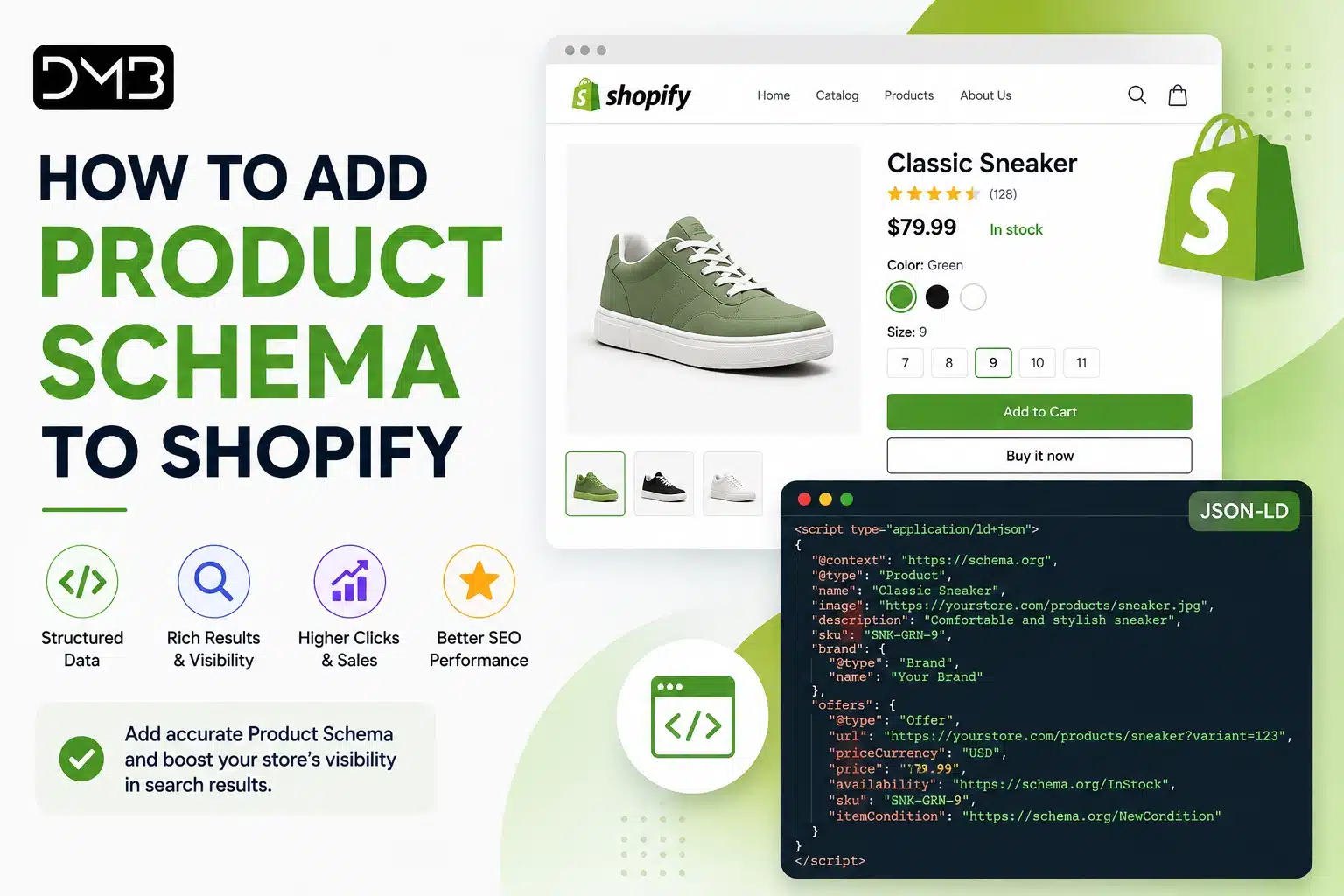
Product schema is structured data that tells search engines the key facts about a product on your Shopify store: its name, image, price, availability, brand, and reviews. Shoppers never see it, but Google and other search engines read it to understand each product page more accurately.
This guide explains what Product schema describes, whether Shopify already adds it, two ways to add it, and how to test it. It also covers the most common problems, including duplicate markup, and how Product schema relates to Google Merchant listings.
What Is Product Schema?
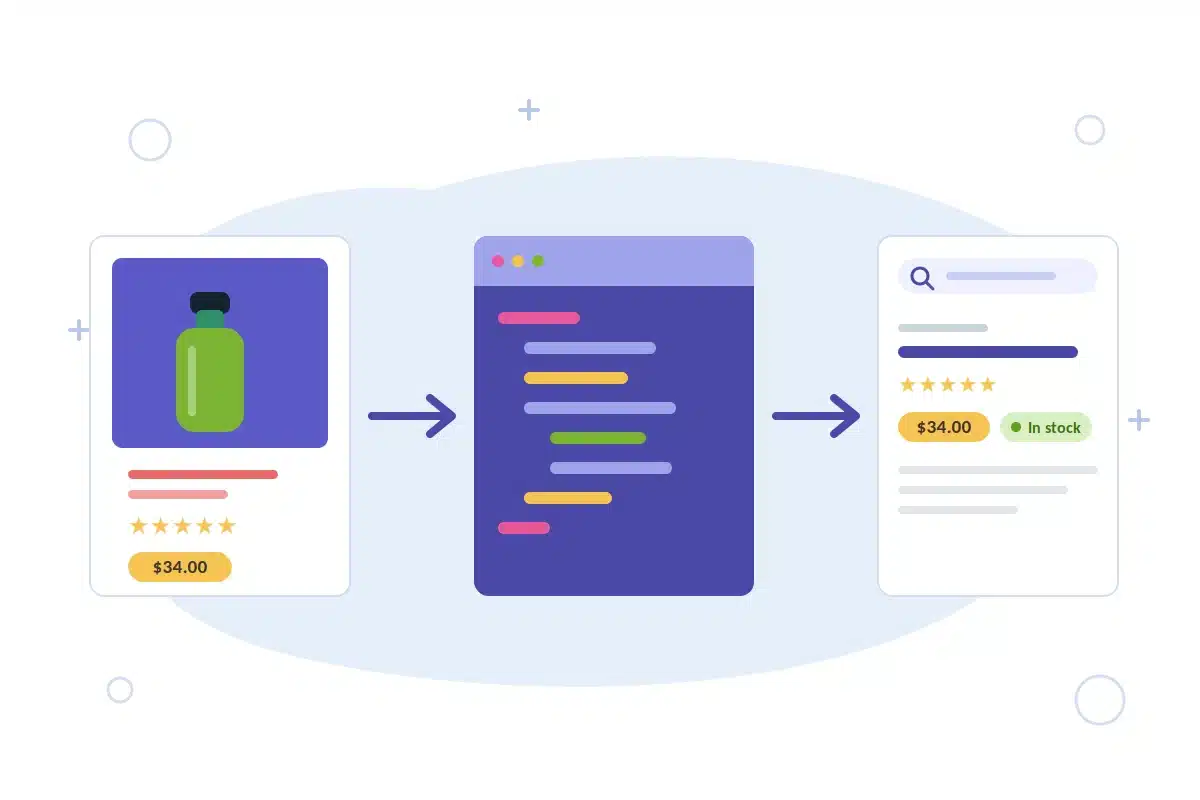
Product schema is a block of JSON-LD code, using the Schema.org vocabulary, that labels the details of a product page for machines. The page might show "Trailhead Bottle, $34.00, In stock." The schema states the same facts in a structured format a crawler can read without guessing. It is a small but valuable part of any ecommerce SEO services plan.
The main details it can describe are:
- Product name, image, and description: What the product is
- Brand and SKU or GTIN: Who makes it and how to identify it
- Price and currency: What it costs
- Availability: In stock, out of stock, pre-order, or backorder
- Product condition: New, used, or refurbished
- Reviews and ratings: Genuine customer feedback shown on the page
In practice, a simple Product block names the item, points to its image, and nests an offer holding the price, currency, and availability. More complete versions add brand, identifiers, shipping, returns, and ratings.
Does Shopify Automatically Add Product Schema?
In many cases, yes. Shopify themes can output basic Product structured data, while SEO and review apps may add additional schema to your product pages. The exact implementation varies by theme, apps, and customizations, so the markup may not always include everything your store needs.
That is why it is important to review your existing structured data before making changes. A proper Shopify SEO strategy can include checking how your product pages are currently marked up, identifying missing or conflicting data, and determining whether additional schema is actually necessary.
Before adding Product Schema manually, inspect what your store already outputs. Adding another schema implementation without checking the existing markup can result in duplicate or conflicting Product data.
How to Add Product Schema to Shopify
There are two practical routes: add the markup yourself in your theme code, or use an app. Whichever you choose, inspect your existing markup first and avoid running two sources for the same product.
Method 1: Add Product JSON-LD manually
Manual setup means adding a Product JSON-LD block to your product template and filling it with live Shopify data. The basic process is:
- Back up and open your theme. In the Shopify admin, go to Online Store, Themes, duplicate your live theme, then choose Edit code on the copy.
- Find the product template. This is usually a product section or template file, depending on your theme.
- Check what's already there. Look for existing structured data in the template and in your theme's other files. If your theme already outputs a Product block, extend or fix that rather than adding a second one.
- Add a Product JSON-LD block. Shopify provides a built-in Liquid filter for outputting Product data, which is the safest starting point. Fully custom blocks are possible but need more care.
- Map Shopify data to the schema. Product title becomes the name, the featured image becomes the image, the variant price becomes the price, and inventory status becomes availability. Identifiers like SKU, barcode, and brand come from the product and variant fields.
- Save, preview, and test. Preview a product page, view the source, and run it through the validation tools below before publishing the theme.
Manual setup gives you control, but it has costs. Syntax errors can break the whole block, theme updates can overwrite your changes, and prices or availability can drift out of sync if the mapping is wrong. If you're not comfortable with Liquid, work with a developer, such as our Shopify web design services team.
How to Add Custom Schema in Shopify (Video Tutorial)
Some stores need schema beyond the default Product markup. This video shows how to add custom schema in Shopify, and JSON-LD for SEO offers Custom Schema for cases the defaults don't cover.
Method 2: Use a Shopify app
An app generates and maintains Product schema for you, which can be easier when your store has:
- Many products
- Product variants
- Reviews from a review app
- Prices that change often
- Frequent inventory changes
- Multiple markets or currencies
- Complex setups such as pre-orders, subscriptions, or backorders
JSON-LD for SEO by DiscoverMyBusiness is built for this. It generates structured data for products and variants, reviews, and Merchant-related product fields, and it also covers articles, pages, breadcrumbs, and business information. It works with Google Merchant Center, Google Search Console, Shopify Markets, and 20+ review apps, including Judge.me. Custom Schema is available for cases the defaults don't cover.
The Starter plan is free for up to 100 pages. Since your data is generated from your live Shopify catalog, there's no theme code to maintain.
How to Install JSON-LD for SEO in Shopify (Video Tutorial)
Prefer to watch? This video walks through how to install JSON-LD for SEO from the Shopify App Store so Product schema is running on your store.
Install JSON-LD for SEO by DiscoverMyBusiness →
What Should Shopify Product Schema Include?
Start with the properties below. Strong product descriptions feed the description field, so well-written copy from SEO content writing services improves both your pages and your markup.
| Property | Purpose |
|---|---|
| name | Product name |
| image | Product image |
| description | Product description |
| sku | Product identifier |
| brand | Brand information |
| offers | Pricing and availability |
| aggregateRating | Overall rating |
| review | Individual reviews |
Which properties are required or recommended depends on the Google search feature you're targeting and on the product information actually on the page. Only include what you can support: don't add ratings you don't display or a GTIN you don't have.
Shopify Product Variants and Schema
Variants are where Product schema most often goes wrong. One product page can hold many purchasable items, but the markup may describe only one. Stores with large catalogs often lean on ecommerce optimization services to keep variant data clean at scale.
For each variant, keep these consistent with what shoppers see:
- Sizes and colors: Option values should match the selector
- Variant SKUs: Unique per variant
- Variant prices: Each variant's own price, not just the lowest
- Variant availability: Stock status per variant
- GTINs: Barcodes belong to specific variants and shouldn't be copied across them
If the markup says $29 and in stock while the page shows $34 and sold out, you've created a mismatch that can cause Merchant Center warnings and may lead Google to ignore the markup.
How to Validate Shopify Product Schema
Start by viewing the page source of a product page and searching for application/ld+json to see what's there. Then test it with these three tools, since each answers a different question. For a full site-wide review, our SEO audit services include a structured data check.
Google Rich Results Test
Paste a product URL or code snippet and the tool shows which Google features the page may be eligible for, with errors and warnings. Errors usually mean a feature can't be used until fixed. Warnings flag recommended fields worth adding. A clean result means the page may be eligible, not that a rich result will appear.
Schema.org Validator
This checks that the markup is valid Schema.org structured data, independent of Google's feature requirements. It's useful for inspecting the structure itself and catching syntax problems.
Google Search Console
After Google crawls your site, Search Console reports structured data issues across many pages, including product-related items. It's the best way to spot problems at scale and to confirm fixes over time, though it updates only as Google recrawls.
Common Shopify Product Schema Problems
Most product schema issues creep in over time as apps and themes change, which is why ongoing website maintenance services are worth having. The usual suspects are:
- Duplicate Product schema: Usually caused by a theme, apps, or manually added markup overlapping.
- Missing product information: Price, availability, image, SKU, or other relevant properties left out.
- Schema doesn't match the page: Structured data should accurately represent the visible product information.
- Incorrect variant data: Prices, availability, or identifiers that don't match the selected variant.

How to Fix Duplicate Product Schema in Shopify
Duplicates are the most common issue, and a quick check usually finds the cause. If it turns out to be tangled, our technical SEO services can untangle it for you.
- Inspect the page source of a product page.
- Search for application/ld+json and note each block.
- Identify multiple Product objects. Two or more on one page usually mean overlap.
- Check installed SEO, schema, and review apps for any that add structured data.
- Check your theme's existing markup in the product template.
- Remove or disable overlapping implementations where appropriate, keeping one source of truth. Note that review apps often add rating data you may want to keep, so confirm what each source contributes before turning it off.
After removing conflicting markup, re-test the live page to ensure your Shopify Product Schema is accurate, consistent, and free of unnecessary duplicates.
Shopify Product Schema vs. Google Merchant Listings
Shopify Product Schema and Google Merchant Listings work together, but they serve different purposes. Product Schema is structured data added to your Shopify website to help search engines understand information such as product names, prices, availability, reviews, and identifiers. Google Merchant Listings, on the other hand, are Google's product-focused search experiences that use product data subject to their own requirements.
Accurate Product Schema can help your pages become eligible for supported Google search features, but it does not guarantee that a product will appear in every Shopping or search result. For stores using both structured data and Merchant Center, keeping product information accurate and consistent across your website and Google Merchant Center is important.
Frequently Asked Questions
1. What is Product schema in Shopify?
Structured data on a product page that describes its name, image, price, availability, brand, and reviews so search engines can interpret it.
2. Does Shopify automatically add Product schema?
Many themes output a basic Product block, and apps may add more. What you get varies, so check your page source before adding anything.
3. How do I add Product JSON-LD to Shopify?
Add it to your product template in the theme code, or use an app that generates it for you, such as JSON-LD for SEO. Either way, avoid running two sources at once.
4. How do I check my Shopify Product schema?
View the page source and search for application/ld+json, then test the URL in Google's Rich Results Test and the Schema.org Validator, and monitor Search Console.
5. Can Shopify have duplicate Product schema?
Yes. A theme, apps, and manual code can each output a Product block. Keep a single source of truth.
6. Does Product schema guarantee Google rich results?
No. It can make a page eligible when Google's requirements are met, but Google decides whether to show a rich result. Once your listings do earn more visibility, our ecommerce marketing services can help turn that traffic into sales.
Automate Product Schema with JSON-LD for SEO
If you'd rather not maintain Product markup by hand, JSON-LD for SEO by DiscoverMyBusiness can handle it automatically for Shopify: product information, variants, reviews, and Merchant Center-related fields. Pair it with conversion rate optimization so the extra clicks from richer listings turn into orders. Structured data can make eligible pages candidates for rich results, but Google makes the final call.
Key Takeaways
- Check before you add: Many themes and apps already output Product schema, so inspect your page source first
- Two ways to add it: Edit your theme's product template by hand, or let an app generate and maintain it
- Match the page exactly: Price, availability, ratings, and identifiers should reflect what shoppers actually see, variant by variant
- One source of truth: Duplicate Product schema is the most common problem, so disable overlapping sources
- Validate, don't assume: Use the Rich Results Test, Schema.org Validator, and Search Console, and remember valid markup is not a guaranteed rich result
(877) 522-7738
Blogs
Enterprise SEO: How Large Websites Can Scale Rankings Effectively
Large websites don’t win by fixing pages one at a time. Learn how enterprise SEO scales rankings through crawl control, template fixes, safe content scaling and AI search readiness.
How to Customize Sales Popups on Shopify to Match Your Brand
Learn how to customize sales popups on Shopify to match your brand, from colors, fonts, and position to message text, timing, and mobile testing.
How Shopify Sales Notifications Help Build Social Proof and Increase Sales
Learn how Shopify sales notifications build social proof, reduce shopper hesitation, and support sales, plus best practices and how to add them to your store.
Franchise SEO Challenges and How Multi-Location Brands Can Overcome Them
Franchise SEO is mostly a coordination problem. See the 10 challenges multi-location brands face, from duplicate location pages and listing drift to profile ownership and AI search, and how to fix each one at scale.
Google Ads Benchmarks 2026: What the Numbers Actually Mean for Your Account
Google Ads Search averages for 2026 are a 6.64% CTR, $5.42 CPC, 8.18% conversion rate and $66.69 cost per lead. Learn how to find your break-even CPL and which metric is holding your account back.
Best Shopify Sales Popup Apps to Boost Customer Trust and Conversions
Compare seven Shopify sales popup apps on features, customization, pricing, and ease of use, and learn how to pick one that builds trust without guesswork.
Franchise vs Enterprise Digital Marketing: Key Differences & Best Practices
Franchise and enterprise marketing both manage many locations under one brand, but they run on different rules. See who controls the budget, brand and data in each model, and the best practices that work for both.
How to Add a Shopify Sales Popup: Step-by-Step Guide
Learn how to add a Shopify sales popup in seven steps. Pick an app, set display rules, test on mobile, and track whether it works, with no coding needed.
Google Partner Rewards Store Not Working? We Hit a Redirect Loop, and Here’s What to Do
Stuck in a Google Partner Rewards Store redirect loop? Discover the exact causes behind the login bug and practical troubleshooting steps to redeem your partner points.
GloriaFood Is Shutting Down: Your 7-Step Plan and a Replacement to Try
With Oracle discontinuing GloriaFood, restaurants must plan ahead: explore a 7-step migration blueprint, data export tips, and top online ordering replacements.
Best Shopify Image Optimization Apps: How to Choose the Right Tool for Your Store
Learn what to look for in a Shopify image optimization app, the main types of tools, how to compare apps fairly, and the mistakes to avoid when choosing the right one.
Shopify Image Optimization Checklist: What to Do Before and After Uploading Product Photos
Use this Shopify image optimization checklist to prepare product photos before you upload, finish the job after, avoid common mistakes, and handle large catalogs in bulk.
Beehiiv Newsletter Platform: Pricing, Features, and Monetization Tools
Explore the beehiiv newsletter platform to streamline your communication and engage with your audience effectively.
Shopify Core Web Vitals and Images: How to Find and Fix Image-Related Speed Issues
Learn how images affect Shopify Core Web Vitals, how to find image-related speed issues, the most common mistakes, and how to fix them, including for large product catalogs.
Shopify Fake Cart Bot Attack: What Stopped 500+ Fake Carts an Hour (and a Script We Can’t Rule Out)
A client’s Shopify store was hit with 500+ fake carts an hour, and captchas, rate limits and bot apps didn’t stop it. Here’s why the traffic bypassed our security, the one fix that worked, and a third-party script lead we’re still tracing.
Getting information about your case and your options is your FIRST move. Get a FREE case evaluation now…
Find Yourself a Marketing Expert Near You!
(877) 522-7738