
How to Add a Shopify Sales Popup: Step-by-Step Guide
TL;DR:
- What it is: A Shopify sales popup is a small notification that shows real store activity, such as recent purchases, add-to-cart events, discounts, or low stock.
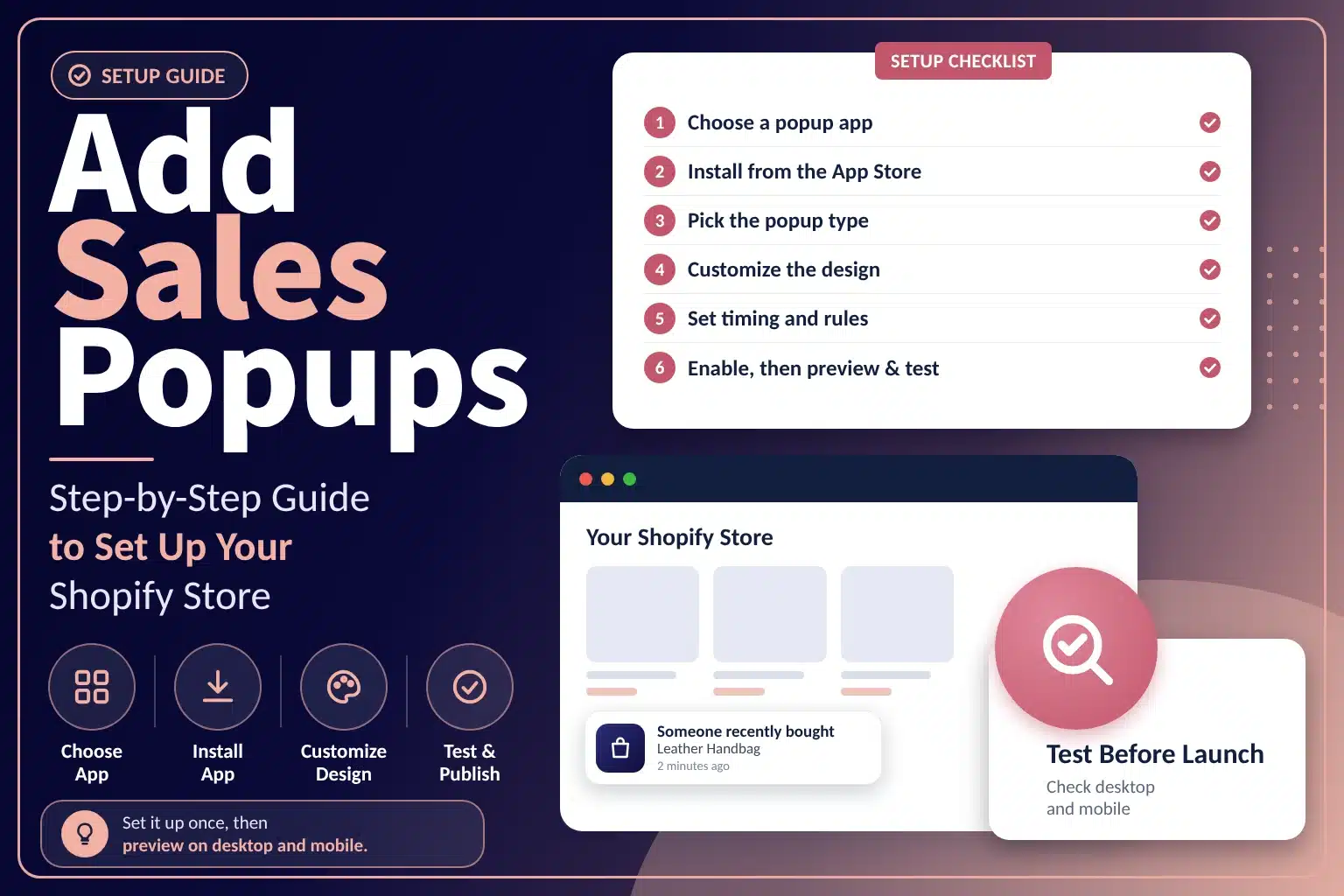
- What to do: Pick an app, install it, choose the popup type, style it, set the display rules, enable it, and then test it on desktop and mobile.
- What it can’t do: Popups support trust and engagement. However, they don’t guarantee more conversions or revenue.
- How to start: Sales Popup by DMB is a no-code option with a free plan that covers up to 2,000 monthly sessions.
A Shopify sales popup is a small notification that appears on your storefront to show what is happening in your store. Someone just bought a product, an item was added to a cart, a discount is available, or stock is running low. Done well, these messages help shoppers feel that your store is active and trustworthy. They can also nudge people to look at products or finish a purchase.
You don’t need to write code to add one. Most Shopify merchants use an app, and the process comes down to a handful of steps. Pick an app, install it, choose the popup type, style it, set the rules, switch it on, and test it.
This guide walks through those steps in order. Then it covers how to tell whether your popup is working and which setup mistakes to avoid. It uses Sales Popup by DMB as an example of a no-code option, but the steps apply to most sales popup apps.
What Is a Sales Popup in Shopify?
A Shopify sales popup is a small notification that appears over or alongside your storefront. It usually sits in a corner of the screen for a few seconds at a time. It draws on real store activity to show shoppers what other people are doing, or to point them to a relevant offer.
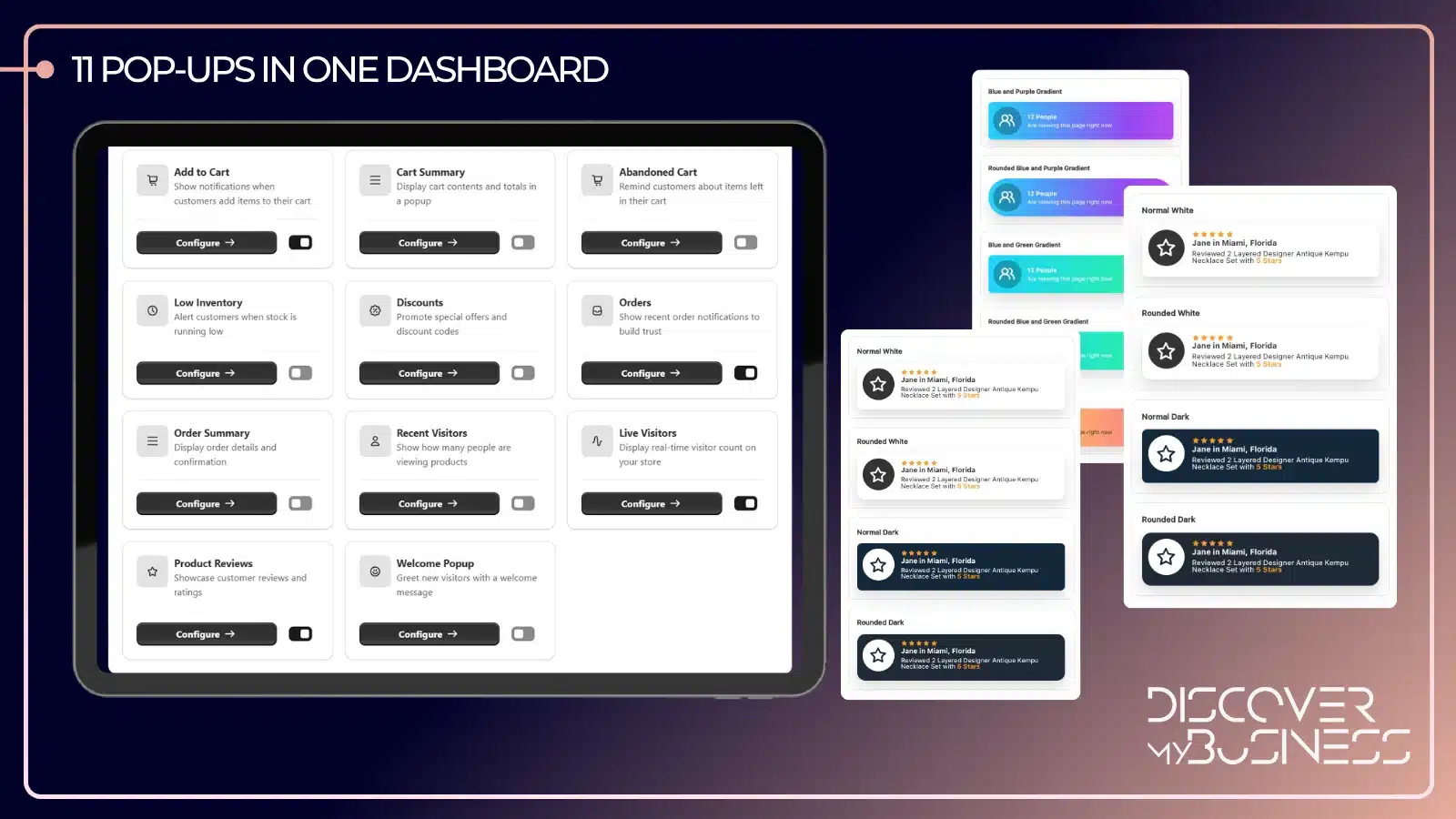
Common examples include:
- Recent purchase notifications: “Someone just bought this product.”
- Add-to-cart activity popups: A message that a product was just added to a cart.
- Discount and promotional offers: A code or a limited-time deal.
- Low-stock alerts: A note that only a few units remain.
- Welcome messages: A greeting or offer for first-time visitors.
Some apps also show live visitor counts or product reviews in the same format.
These are different from email signup popups. A sales popup is about social proof and timely information. An email popup, in contrast, asks the visitor to hand over contact details so you can market to them later. Many stores use both, but they do different jobs.
Why Add a Sales Popup to Your Shopify Store?
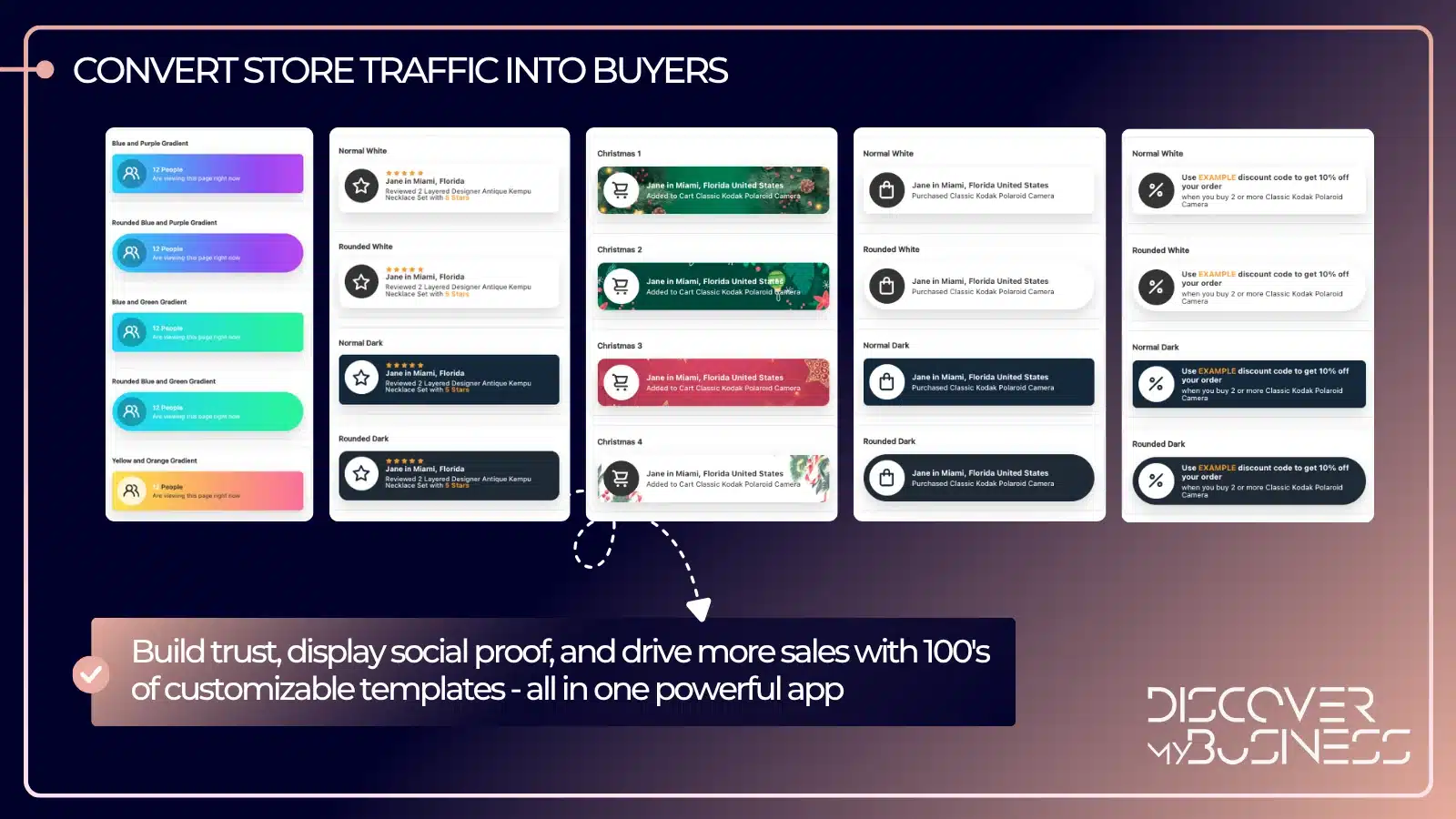
- Build social proof: Showing genuine customer activity reassures shoppers that real people buy from you.
- Create urgency: Accurate stock information and relevant offers can prompt people to decide sooner.
- Encourage engagement: A popup draws attention to products and promotions a visitor might otherwise miss.
- Support purchase decisions: On an unfamiliar store, small trust signals help shoppers feel more confident.
The key word in all four is genuine. Popups work when they reflect what is really happening in your store.
How to Add a Shopify Sales Popup: Step-by-Step
The steps below follow a typical app-based setup. Menu names and screens vary between apps, so treat them as a guide. Also check each app’s own instructions.
Step 1: Choose a Shopify sales popup app
Start by deciding what you need. Then compare apps on these points:
- Popup types: Recent sales, add-to-cart activity, discounts, stock alerts, and welcome messages
- Customization: Colors, text, position, and size
- Display controls: Timing, page rules, and how often popups appear
- Analytics: Impressions and clicks, so you can see what is working
- Pricing and limits: Free plans, usage caps, and what paid tiers add
- Support: How you get help during setup
Sales Popup by DMB is one option. Its Shopify listing describes real-time sales popups, welcome popups, add-to-cart and order confirmation notifications, discount and promotional popups, and low-stock alerts. A free plan is available.
Why use an app instead of coding it yourself? Showing real purchase activity means reading live order data and deciding which events to display. You also have to keep everything updated. An app handles that, so you configure settings instead of writing and maintaining scripts.
Step 2: Install the sales popup app
- Open the app listing in the Shopify App Store.
- Click Install, then log in and choose the store you want to add it to.
- Review the requested permissions. Sales popup apps usually need access to order, product, and customer activity data to display real events. Read the permission list and the developer’s privacy policy so you know what the app can see.
- Check the plan and billing details. Note any usage limits and whether a free plan applies.
- Approve the installation. The app then appears in your Shopify admin under Apps.
Because popups can display customer information, such as a first name or city, make sure your store’s privacy policy reflects how you use customer data.
Step 3: Choose the type of sales popup
Match the popup type to what you want it to do:
- Recent sales notifications build social proof by showing that others are buying.
- Add-to-cart notifications keep attention on products people are showing interest in.
- Discount popups promote a code or a limited-time offer.
- Stock alerts point out availability, such as low stock, when the numbers are accurate.
- Welcome popups greet first-time visitors with a message or an offer.
Start with one or two types instead of switching on everything. A store that opens with a welcome popup, a purchase notification, and a discount banner all at once feels cluttered. You can add more once you see how the first ones perform.
Step 4: Customize your sales popup design
Your popup should look like part of your store, not an add-on.
- Match your brand: Use your store’s colors and fonts where the app allows.
- Keep the text short: A popup is read at a glance, so one clear line beats a paragraph.
- Choose a sensible position and size: Corners usually work well because they don’t cover products or the add-to-cart button.
- Check it on mobile: Make sure the text stays readable and the popup doesn’t cover key content on a small screen. This is also a basic part of responsive web design.
Step 5: Configure display timing and rules
Timing and placement matter as much as design.
- Set when notifications appear: A short delay after a visitor lands gives them a moment to look around first.
- Decide which pages show them: Product pages are a natural fit for purchase and stock notifications. Welcome popups belong on the homepage or the first page a visitor sees.
- Adjust the interval and duration, if the app supports it: Notifications that appear every few seconds feel pushy. Instead, use a longer gap and a few seconds on screen.
- Limit repeats: Avoid showing too many popups to the same visitor, especially the same message again and again.
Step 6: Enable and publish the popup
- Save the popup settings in the app.
- Check whether the app needs a theme integration. Many apps work through an app embed. In your Shopify admin, go to Online Store, then Themes, then Customize. Open App embeds, switch on the relevant embed, and save.
- Confirm that the popup is enabled before moving on to testing.
Shopify supports both app embeds and app blocks, but the exact steps depend on how each app is built. If the app has its own setup guide or onboarding checklist, follow that first.
Step 7: Preview and test your sales popup
Before you leave it running, check it the way a shopper would.
- Visit your storefront and confirm the popup appears as intended.
- Test desktop and mobile layouts.
- Verify the text, product information, links, and timing.
- Look for overlap with chat widgets, cookie banners, and other popups.
- Confirm that purchase notifications reflect genuine activity, not made-up sales. Fabricated notifications can mislead shoppers and may breach consumer protection rules in some places.
Try Sales Popup by DMB Free on Shopify →
How to Check Whether Your Shopify Sales Popup Is Working
Give it some time, then look at the evidence.
- Monitor impressions and clicks if the app provides analytics.
- Compare conversion rates before and after you switched the popup on. Keep in mind that seasons, promotions, and traffic changes also move your numbers. Our Google Analytics services can help you set up clean tracking.
- Review add-to-cart activity and completed purchases on the pages where popups appear.
- Check whether visitors leave pages quickly or dismiss the notifications.
- Test different messages and display timings before deciding what works best.
Installing a popup won’t automatically raise conversions. Results depend on your store, your audience, and how well the popup is set up, so judge it by your own data. Testing is also a core part of any conversion rate optimization plan.
Common Sales Popup Setup Mistakes to Avoid
- Showing too many notifications at once: Stacked or constant popups annoy visitors.
- Using misleading purchase or stock alerts: Only show activity and stock levels that are real.
- Ignoring mobile usability: A popup that covers the add-to-cart button on a phone costs you sales.
- Showing irrelevant promotions on every page: Match the message to the page.
- Using designs that clash with your branding: A mismatched popup looks untrustworthy.
- Forgetting to enable the app integration or save theme changes: If the popup doesn’t appear, check the app embed first.
- Failing to review performance after launch: Look at the results and adjust.
Add Sales Popups to Shopify With Sales Popup by DMB
If you’d rather not build this yourself, Sales Popup by DMB is a Shopify app for sales notifications and customer engagement. According to its Shopify listing, it can show:
- Real-time sales popups with recent customer purchases
- Welcome popups for visitors entering your store
- Add-to-cart and order confirmation activity notifications
- Discount code and promotional popups
- Low-stock and out-of-stock alerts
- Live visitor counts and product review popups
You can customize when and how popups appear, and the app includes analytics so you can see how they perform. It is set up through the app rather than by editing code, so you don’t need development skills for the basics.
Plans are based on monthly sessions, and the listing shows a free plan:
| Plan | Price | Monthly sessions | Support |
|---|---|---|---|
| Free | $0 | Up to 2,000 | |
| Starter | $29/month | Up to 10,000 | |
| Professional | $59/month | Up to 25,000 | Priority email |
| Business | $99/month | Up to 50,000 | Dedicated |
Higher plans add things like advanced analytics, multi-workspace or team access, and enhanced performance. Pricing can change, so confirm the current details on the listing.
Explore Sales Popup by DMB on the Shopify App Store →
Frequently Asked Questions
1. How do I add a sales popup to my Shopify store?
Choose a sales popup app, install it from the Shopify App Store, and pick the notification type you want. Then customize the design and timing, and enable any required theme integration such as an app embed. Finally, test the storefront on desktop and mobile.
2. Can I add a sales popup to Shopify without coding?
Yes. Many popup apps offer no-code setup, so you configure settings in the app instead of editing theme files. Custom-built popups, on the other hand, usually need a developer and ongoing maintenance.
3. Are Shopify sales popup apps free?
It varies by app. Some have a free plan with limits, such as a cap on monthly sessions, and charge for higher usage or extra features. Therefore, check the current plans, limits, and paid features on each listing before you install.
4. Can I customize sales popups to match my Shopify theme?
Usually, to a degree. Common options include colors, fonts, text, position, and timing. However, exactly what you can change depends on the app, so check its settings or listing for the customization options.
5. Do sales popups work on mobile devices?
That depends on the app’s compatibility and your settings. Always test your storefront on a phone to check that popups are readable and don’t cover buttons or other important content.
6. Do sales popups guarantee more Shopify sales?
No. Popups can support trust and engagement, but they don’t guarantee more conversions or revenue. Your results depend on your store, audience, and setup, so measure the impact with your own data.
Final Thoughts: Start Small and Measure
A sales popup is easy to add and easy to overdo. Start with one or two popup types, keep the messages short and honest, and test on both desktop and mobile. Then review the results and adjust.
Popups work best as one part of a wider store strategy. Our ecommerce optimization services can help you decide where trust signals will matter most. When you are ready to set one up, Sales Popup by DMB lets you do it without touching code.
Key Takeaways
- Use real activity: Popups work when they reflect genuine purchases and accurate stock, so never fake them
- Follow the seven steps: Choose an app, install it, pick a type, style it, set rules, enable it, and test it
- Start with one or two types: You can add more once you see how the first ones perform
- Test on mobile: A popup that covers key buttons costs you sales
- Judge by your data: Popups support trust and engagement, but they can’t guarantee conversions or revenue
(877) 522-7738
Blogs
Enterprise SEO: How Large Websites Can Scale Rankings Effectively
Large websites don’t win by fixing pages one at a time. Learn how enterprise SEO scales rankings through crawl control, template fixes, safe content scaling and AI search readiness.
How to Customize Sales Popups on Shopify to Match Your Brand
Learn how to customize sales popups on Shopify to match your brand, from colors, fonts, and position to message text, timing, and mobile testing.
How Shopify Sales Notifications Help Build Social Proof and Increase Sales
Learn how Shopify sales notifications build social proof, reduce shopper hesitation, and support sales, plus best practices and how to add them to your store.
Franchise SEO Challenges and How Multi-Location Brands Can Overcome Them
Franchise SEO is mostly a coordination problem. See the 10 challenges multi-location brands face, from duplicate location pages and listing drift to profile ownership and AI search, and how to fix each one at scale.
Google Ads Benchmarks 2026: What the Numbers Actually Mean for Your Account
Google Ads Search averages for 2026 are a 6.64% CTR, $5.42 CPC, 8.18% conversion rate and $66.69 cost per lead. Learn how to find your break-even CPL and which metric is holding your account back.
Best Shopify Sales Popup Apps to Boost Customer Trust and Conversions
Compare seven Shopify sales popup apps on features, customization, pricing, and ease of use, and learn how to pick one that builds trust without guesswork.
Franchise vs Enterprise Digital Marketing: Key Differences & Best Practices
Franchise and enterprise marketing both manage many locations under one brand, but they run on different rules. See who controls the budget, brand and data in each model, and the best practices that work for both.
Google Partner Rewards Store Not Working? We Hit a Redirect Loop, and Here’s What to Do
Stuck in a Google Partner Rewards Store redirect loop? Discover the exact causes behind the login bug and practical troubleshooting steps to redeem your partner points.
GloriaFood Is Shutting Down: Your 7-Step Plan and a Replacement to Try
With Oracle discontinuing GloriaFood, restaurants must plan ahead: explore a 7-step migration blueprint, data export tips, and top online ordering replacements.
Best Shopify Image Optimization Apps: How to Choose the Right Tool for Your Store
Learn what to look for in a Shopify image optimization app, the main types of tools, how to compare apps fairly, and the mistakes to avoid when choosing the right one.
Shopify Image Optimization Checklist: What to Do Before and After Uploading Product Photos
Use this Shopify image optimization checklist to prepare product photos before you upload, finish the job after, avoid common mistakes, and handle large catalogs in bulk.
Beehiiv Newsletter Platform: Pricing, Features, and Monetization Tools
Explore the beehiiv newsletter platform to streamline your communication and engage with your audience effectively.
Shopify Core Web Vitals and Images: How to Find and Fix Image-Related Speed Issues
Learn how images affect Shopify Core Web Vitals, how to find image-related speed issues, the most common mistakes, and how to fix them, including for large product catalogs.
Shopify Fake Cart Bot Attack: What Stopped 500+ Fake Carts an Hour (and a Script We Can’t Rule Out)
A client’s Shopify store was hit with 500+ fake carts an hour, and captchas, rate limits and bot apps didn’t stop it. Here’s why the traffic bypassed our security, the one fix that worked, and a third-party script lead we’re still tracing.
JPEG vs. PNG vs. WebP: Which Image Format Is Best for Shopify Stores?
Compare JPEG, PNG, and WebP for Shopify stores, see which format suits each image type, and learn if WebP speeds up your store and how to optimize images without losing quality.
Getting information about your case and your options is your FIRST move. Get a FREE case evaluation now…
Find Yourself a Marketing Expert Near You!
(877) 522-7738