
Imagify for WordPress: Features, Pricing & a $6/Month Deal for 1,000 MB (2026)
Disclosure: DiscoverMyBusiness may earn revenue when readers take the offer in this post. Our opinions are our own.
TL;DR:
- What it is: Imagify is a WordPress image optimization plugin from WP Media, the team behind WP Rocket. It compresses your images, converts them to WebP and AVIF, and does the work on its own servers.
- What it does for you: smaller image files usually mean faster pages, better Core Web Vitals, and less bandwidth, with no manual work after setup.
- What it costs: a free plan covers 20 MB a month (about 200 images). Imagify lists a 500 MB plan at $5.99/month and an unlimited plan at $9.99/month.
- Our reader deal: get 1,000 MB of Imagify optimization for $6 a month through DiscoverMyBusiness, double the quota of Imagify's listed 500 MB plan for about the same price.
Images are usually the heaviest part of a WordPress page. A homepage with a few full-width photos can weigh several megabytes before a single script loads, and visitors on phones feel every one of them. Slow pages cost you rankings, leads, and sales, and unoptimized images are one of the easiest causes to fix.
That's where Imagify comes in. This guide covers what it does, how to set it up, what the plans cost, and how to get 1,000 MB for $6 a month through our deal. If your site needs more than a plugin, our WordPress website design and technical SEO teams can take on the whole speed project.
Claim the $6/Month Imagify Deal →
What Is Imagify?
Imagify is an image optimization service with a WordPress plugin. When you upload an image to your Media Library, the plugin sends it to Imagify's servers, which compress it and send it back. The optimized version replaces the original on your site. It's built by WP Media, the company behind the WP Rocket caching plugin.
- Optimizes every size: WordPress generates multiple sizes of each upload, from thumbnails to full width, and Imagify optimizes all of them
- Converts to next-gen formats: WebP and AVIF, the formats Google recommends for faster loading
- Runs on Imagify's servers: compression happens off your server, so it doesn't slow your site while it works
- Keeps your results: once images are optimized, they stay on your site even if you later delete the Imagify account
Why Image Optimization Matters for WordPress Sites
Page speed affects how people experience your site, and that affects whether they stay, call, or buy. Large images are a common reason a page scores poorly on Google's Core Web Vitals, especially the loading metric tied to your biggest visible element, which is often an image.
- Faster loading, especially on mobile connections, which is a core goal of any Responsive Web Design project
- Better user experience, which supports conversions on landing pages and product pages and is something User Experience Testing can measure directly
- Cleaner technical SEO, since speed and Core Web Vitals are part of how search engines evaluate pages
- Lower bandwidth use, which can matter on metered or entry-level hosting
Speed isn't a ranking magic wand, and a fast site still needs good content and links. But a slow site with heavy images is a drag on everything else you pay for. If speed is part of a bigger SEO plan, an SEO audit will show where it sits among your priorities.
Imagify Features
- Automatic optimization on upload: new images are compressed as soon as you add them to the Media Library
- Async bulk optimization: optimize your existing library in the background, so old uploads don't need a manual pass
- WebP and AVIF conversion: create next-gen versions alongside your originals
- Three compression levels: pick the balance between file size and visual quality
- Backup and restore: keep your original files so you can re-optimize at a different level later
- Image resizing: cap the maximum dimensions of oversized uploads
- Optimization beyond the Media Library: it can also find and optimize images in theme and plugin folders
- Sub-accounts: allocate a share of your quota to different sites or clients
- API access: available for custom development projects
Compression Levels: Which One Should You Pick?
| Level | What it does | Best for |
|---|---|---|
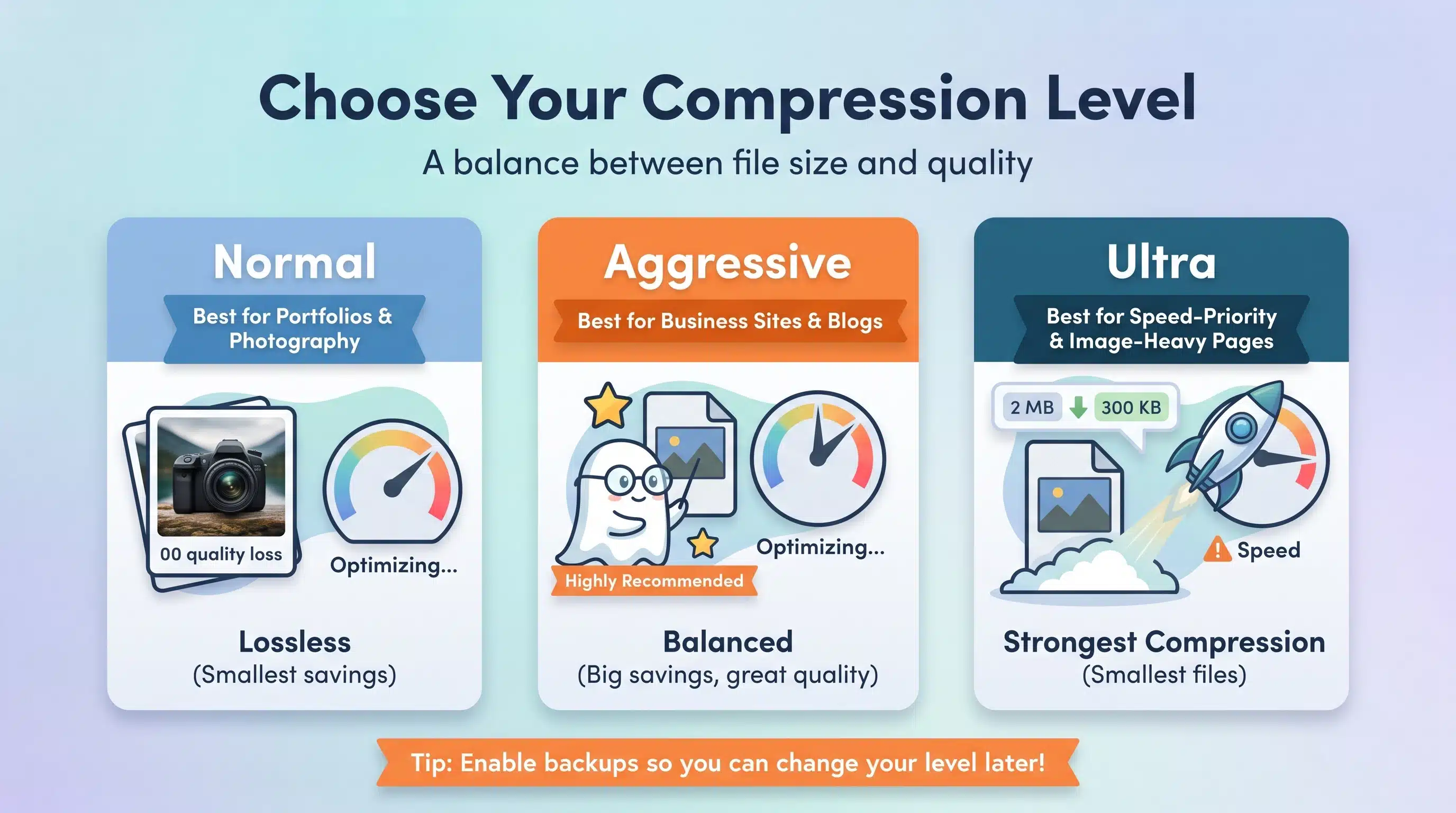
| Normal | Lossless compression: no visible quality change, smaller savings | Portfolios, photography, and anywhere image fidelity is the point |
| Aggressive | Lossy compression with a bigger size reduction and little visible difference for most images | Most business sites, blogs, and service pages |
| Ultra | The strongest compression, with the smallest files | Image-heavy pages where speed matters more than perfect detail |
If you turn on the backup option, you can re-optimize any image at a different level later, so you're not locked into your first choice. Test on a few key pages before you run a full bulk optimization.
How to Install and Set Up Imagify
- Install the plugin: in your WordPress dashboard, go to Plugins → Add New, search for "Imagify," and click Install, then Activate.
- Connect your account: create a free Imagify account (or use the one set up through our deal) and add your API key under Settings → Imagify.
- Choose a compression level: Aggressive is a sensible default for most business sites.
- Turn on WebP and AVIF: enable next-gen formats so visitors with compatible browsers get the smaller files.
- Enable backups: keep your originals so you can restore or re-optimize later.
- Set a maximum image size: resize oversized uploads automatically so you don't spend quota on 5,000-pixel photos.
- Run bulk optimization: optimize your existing Media Library in the background.
- Test your pages: check a few key URLs in Google's PageSpeed Insights before and after, and clear your cache if you use a caching plugin.
Imagify Pricing
Imagify prices by monthly quota, meaning the amount of image data you send for optimization, not by number of sites. You can use one account on as many websites as you like.
| Plan | Monthly quota | Listed price |
|---|---|---|
| Starter (free) | 20 MB (about 200 images) | $0, no credit card |
| Growth | 500 MB | $5.99/month ($59.90/year) |
| Infinite | Unlimited (fair use policy) | $9.99/month ($99.90/year) |
| DiscoverMyBusiness reader deal | 1,000 MB | $6/month |
Prices on third-party trackers vary by billing term and date (one May 2026 tracker, for example, lists the unlimited plan higher), so check Imagify's live pricing page before you compare. On the free plan, there's also a 2 MB limit per image, and once the monthly quota is used you can't optimize new images until it renews.
Our Deal: 1,000 MB for $6/Month
We've set up a reader deal for WordPress owners: 1,000 MB of Imagify optimization for $6 a month. Compared with Imagify's listed Growth plan (500 MB at $5.99), that's twice the quota for about the same price, which is enough for most small business sites, blogs, and local service websites.
- 1,000 MB of monthly optimization quota across all the image sizes WordPress generates
- WebP and AVIF conversion and every other Imagify feature covered above
- Setup help from our team if you'd like it, including recommended settings
Get 1,000 MB of Imagify for $6/Month
Tell us about your WordPress site and we'll get your Imagify quota set up. If you'd like a second set of eyes on your site speed, we'll check that too.
Claim the Imagify Deal →How to claim it
- Contact us using the button above and tell us your website address.
- We confirm your quota and billing, and send you what you need to connect the plugin.
- Install and connect Imagify using the steps in the setup section.
- Run your bulk optimization and check your page speed.
How Much Quota Do You Actually Need?
Imagify counts the total size of the images it processes, not the number of uploads. And because WordPress creates several sizes of every image, one upload can use more quota than its original file size suggests.
An illustrative example: if one upload plus its generated sizes adds up to about 2 MB, a 1,000 MB quota covers roughly 500 uploads a month. Your numbers will differ, so work out your own:
- New uploads per month × average total size of an upload with its generated sizes = monthly quota used
- Add your existing library once. Optimizing years of old images is a one-time quota hit, and it may span a month or two.
Most small business sites that publish a few images a week will sit comfortably inside 1,000 MB once the initial library is done. Ecommerce stores, galleries, and sites that upload hundreds of photos a month should look at Imagify's unlimited plan.
How to Stretch Your Quota
- Resize before you upload. A 4,000-pixel camera photo rarely needs to be that big on a web page, and smaller originals use less quota.
- Set a maximum image width in Imagify, so oversized uploads are scaled down automatically.
- Don't re-optimize the same images repeatedly. Pick a level, test it, then run it once.
- Remove unused image sizes. Themes and plugins often register sizes you never display, and each one counts.
- Optimize in batches. Spread a large existing library over a couple of months instead of all at once.
- Pair it with caching and lazy loading. They don't use quota and add to the speed gains. Our website maintenance service covers this kind of ongoing performance work.
Limits to Know About
- It's quota-based. Paid plans charge extra if you go over, and the free plan simply stops until it renews.
- Images are processed on Imagify's servers. Your image files are sent off your site for optimization. That's fine for most sites, but think twice if you handle sensitive or confidential images.
- It's built for WordPress. Imagify is available for WordPress, and on WordPress.com you need a Business plan to use plugins.
- Serving next-gen formats needs the right setup. Depending on your configuration, WebP and AVIF are delivered through HTML picture tags or server rewrite rules, so test after enabling them and clear your cache.
- It won't fix a slow host or heavy scripts. Images are one part of page speed, so look at hosting, theme, and plugins too.
Imagify vs. Other Image Optimizers
| Option | How it works | Where Imagify differs |
|---|---|---|
| ShortPixel | Credit-based cloud optimization with a WordPress plugin | Imagify prices by data quota and offers an unlimited plan; compare your monthly volume under each model |
| TinyPNG / TinyJPG | Well-known web compressor with a WordPress integration | Imagify's WordPress plugin also converts to WebP and AVIF, with backup and bulk tools built in |
| Free local optimizers (e.g., Smush, EWWW) | Free tiers or processing on your own server | Imagify offloads work to its servers, which keeps your host's load lower, at the cost of a quota |
| WP Rocket | Caching and performance plugin from the same company | Different job. They work well together: Imagify shrinks images, a caching plugin speeds delivery |
Competitor plans and prices change often. Check each provider's current terms before deciding.
Is Imagify Worth It?
For most WordPress owners with image-heavy pages, yes. It's easy to set up, it works automatically after that, and the quality control is flexible enough to suit a portfolio or a plumber's website. The free plan is worth trying on a small site first. If you outgrow 20 MB, the 1,000 MB deal for $6 a month is a low-risk way to cover a typical small business site without paying for unlimited.
If your pages are still slow after image optimization, the cause is usually somewhere else, such as hosting, bloated themes, or too many plugins. That's where our team can help with a broader conversion rate optimization and speed review.
Key Takeaways
- Imagify automates image compression and WebP/AVIF conversion for WordPress sites
- Quota is based on data size, not site count, and WordPress's generated image sizes count toward it
- Our deal gives you 1,000 MB for $6/month, double Imagify's listed 500 MB plan for about the same price
- Resize before you upload and set a maximum width to make your quota go further
- Images are one piece of page speed, so check hosting, theme, and plugins as well
Frequently Asked Questions
1. What is Imagify?
Imagify is a WordPress image optimization plugin and service from WP Media, the makers of WP Rocket. It compresses your images on its servers, converts them to WebP and AVIF, and replaces the originals on your site.
2. Is Imagify free?
There's a free Starter plan with 20 MB of optimization a month, about 200 images, and no credit card required. Images are limited to 2 MB each, and once you use the monthly quota you can't optimize new images until it renews.
3. How much does Imagify cost?
Imagify lists a Growth plan with 500 MB a month at $5.99/month and an Infinite plan with unlimited use at $9.99/month. Prices vary by billing term, so check its pricing page. Through DiscoverMyBusiness, you can get 1,000 MB for $6 a month.
4. What does 1,000 MB of quota cover?
It depends on your image sizes. WordPress creates several sizes per upload, and all of them count. If an upload plus its generated sizes averages about 2 MB, 1,000 MB covers roughly 500 uploads a month.
5. Can I use one Imagify account on multiple websites?
Yes, Imagify lets you use an account on as many sites as you want. All of them draw from the same monthly quota, and sub-accounts let you divide it.
6. Will Imagify reduce my image quality?
That depends on the level you pick. Normal is lossless, while Aggressive and Ultra are lossy and trade some detail for smaller files. If you keep backups on, you can restore originals and try a different level.
7. What happens if I cancel or delete my Imagify account?
Images you've already optimized stay on your site. You just can't optimize new ones through that account.
8. Does Imagify work on WordPress.com?
Only if you have a Business plan, since it's a plugin and plugins need that tier. It's also available only for WordPress at this time.
9. Will optimizing images improve my Google rankings?
It can help, since faster pages and better Core Web Vitals support good user experience and SEO. It isn't a guaranteed ranking boost on its own, and it works best alongside solid content, links, and technical SEO.
10. How do I claim the $6/month deal?
Use the button on this page to contact us with your website address. We'll confirm your quota and help you connect it.
Ready to Speed Up Your WordPress Site?
Get 1,000 MB of Imagify optimization for $6 a month, and let us know if you'd like help with the rest of your site's speed and SEO.
Claim the $6/Month Imagify Deal →
Disclosure: DiscoverMyBusiness may earn revenue when readers take the offer in this post. Imagify and WP Rocket are products of WP Media. Opinions expressed are our own and are not official statements of that company.
(877) 522-7738
Blogs
Enterprise SEO: How Large Websites Can Scale Rankings Effectively
Large websites don’t win by fixing pages one at a time. Learn how enterprise SEO scales rankings through crawl control, template fixes, safe content scaling and AI search readiness.
How to Customize Sales Popups on Shopify to Match Your Brand
Learn how to customize sales popups on Shopify to match your brand, from colors, fonts, and position to message text, timing, and mobile testing.
How Shopify Sales Notifications Help Build Social Proof and Increase Sales
Learn how Shopify sales notifications build social proof, reduce shopper hesitation, and support sales, plus best practices and how to add them to your store.
Franchise SEO Challenges and How Multi-Location Brands Can Overcome Them
Franchise SEO is mostly a coordination problem. See the 10 challenges multi-location brands face, from duplicate location pages and listing drift to profile ownership and AI search, and how to fix each one at scale.
Google Ads Benchmarks 2026: What the Numbers Actually Mean for Your Account
Google Ads Search averages for 2026 are a 6.64% CTR, $5.42 CPC, 8.18% conversion rate and $66.69 cost per lead. Learn how to find your break-even CPL and which metric is holding your account back.
Best Shopify Sales Popup Apps to Boost Customer Trust and Conversions
Compare seven Shopify sales popup apps on features, customization, pricing, and ease of use, and learn how to pick one that builds trust without guesswork.
Franchise vs Enterprise Digital Marketing: Key Differences & Best Practices
Franchise and enterprise marketing both manage many locations under one brand, but they run on different rules. See who controls the budget, brand and data in each model, and the best practices that work for both.
How to Add a Shopify Sales Popup: Step-by-Step Guide
Learn how to add a Shopify sales popup in seven steps. Pick an app, set display rules, test on mobile, and track whether it works, with no coding needed.
Google Partner Rewards Store Not Working? We Hit a Redirect Loop, and Here’s What to Do
Stuck in a Google Partner Rewards Store redirect loop? Discover the exact causes behind the login bug and practical troubleshooting steps to redeem your partner points.
GloriaFood Is Shutting Down: Your 7-Step Plan and a Replacement to Try
With Oracle discontinuing GloriaFood, restaurants must plan ahead: explore a 7-step migration blueprint, data export tips, and top online ordering replacements.
Best Shopify Image Optimization Apps: How to Choose the Right Tool for Your Store
Learn what to look for in a Shopify image optimization app, the main types of tools, how to compare apps fairly, and the mistakes to avoid when choosing the right one.
Shopify Image Optimization Checklist: What to Do Before and After Uploading Product Photos
Use this Shopify image optimization checklist to prepare product photos before you upload, finish the job after, avoid common mistakes, and handle large catalogs in bulk.
Beehiiv Newsletter Platform: Pricing, Features, and Monetization Tools
Explore the beehiiv newsletter platform to streamline your communication and engage with your audience effectively.
Shopify Core Web Vitals and Images: How to Find and Fix Image-Related Speed Issues
Learn how images affect Shopify Core Web Vitals, how to find image-related speed issues, the most common mistakes, and how to fix them, including for large product catalogs.
Shopify Fake Cart Bot Attack: What Stopped 500+ Fake Carts an Hour (and a Script We Can’t Rule Out)
A client’s Shopify store was hit with 500+ fake carts an hour, and captchas, rate limits and bot apps didn’t stop it. Here’s why the traffic bypassed our security, the one fix that worked, and a third-party script lead we’re still tracing.
Getting information about your case and your options is your FIRST move. Get a FREE case evaluation now…
Find Yourself a Marketing Expert Near You!
(877) 522-7738