
How to Optimize Product Images on Shopify for Better SEO and Faster Loading
TL;DR:
- What it is: Shopify product image optimization means getting four things right at once: size, compression, filenames, and alt text. Done well, it also helps shoppers, screen reader users, and image search.
- What to do: Follow seven steps, from choosing sizes to auditing what you have. Then set simple rules for bulk work as your catalog grows.
- What it can’t do: Image optimization supports discoverability and a better experience. However, it does not guarantee higher rankings, faster scores, or more sales on its own.
- How to scale it: For large catalogs, SEO Image Optimizer by DMB handles compression, alt text, renaming, and bulk processing. Also, its Free plan covers up to 500 images.
Product images do a lot of work on a Shopify store. They help shoppers see what they’re buying, they give screen reader users a description of it, they can bring visitors in through image search, and they’re usually the heaviest files on the page. Learning how to optimize product images on Shopify means getting all four right at once.
This guide walks through seven practical steps: choosing sizes, compressing, naming files, writing alt text, picking formats, checking mobile loading, and auditing what you already have. It also covers how to handle bulk work when a catalog grows past what you can edit by hand, including where an automated option like SEO Image Optimizer by DMB fits.

Why Shopify Product Image Optimization Matters for SEO
Descriptive image information and efficient delivery can support discoverability and the shopping experience. They don’t guarantee higher rankings or conversions, but they remove avoidable friction. Strong image work is also a core part of any ecommerce SEO services plan.
How product images help search engines understand your products
Search engines can’t see a photo the way a shopper does. Instead, image SEO signals such as filenames, alt text, and the text around an image give them context. That context shows what the image depicts, so search engines can relate it to the product.
How image file sizes affect page loading speed
Product pages often carry several large images, so the files add up. Heavier files take longer to download, especially on mobile connections. As a result, a gallery of oversized photos can slow the whole page.
Why image quality and accessibility matter for shoppers
Shoppers judge products by their photos, so clear, sharp images matter. Alt text also lets people using screen readers know what each image shows.
How optimized images can support Google Images visibility
Descriptive filenames, useful alt text, and fast-loading images can also make your products easier for Google Images to understand. However, visibility there still depends on many factors outside your control.
Step 1: Choose the Right Image Size and Dimensions for Shopify
The best image size for Shopify products is the smallest one that still looks sharp when a shopper zooms in. Because consistent photos make everything else easier, professional product photography services can help if you shoot your own catalog.
Recommended product image dimensions and aspect ratios
Shopify’s guidance says 2048 × 2048 px usually looks best for square product images. It also accepts images up to 5000 × 5000 px and files under 20 MB. However, uploading the maximum rarely helps. Check Shopify’s current product media documentation, since limits can change.
Keep photos sharp without oversized files
A photo that is far larger than it will ever display just adds weight, so skip the oversized original. Therefore, resize to the dimensions you actually need before you compress.
Maintain consistent dimensions across collections
Use the same aspect ratio for every product in a collection, so the grid looks even. As a result, nothing gets awkwardly cropped.
Check desktop and mobile display
Open a few product and collection pages on a phone and on a desktop. Then look for cropped edges, blurry zoom, and slow-loading galleries.
A quick preparation checklist:
- Shoot or export at a consistent aspect ratio, so every image fits the grid
- Resize to about 2048 px on the long side when images are square
- Remove unnecessary background, because empty space adds weight
- Keep the product centered, while using similar padding across images
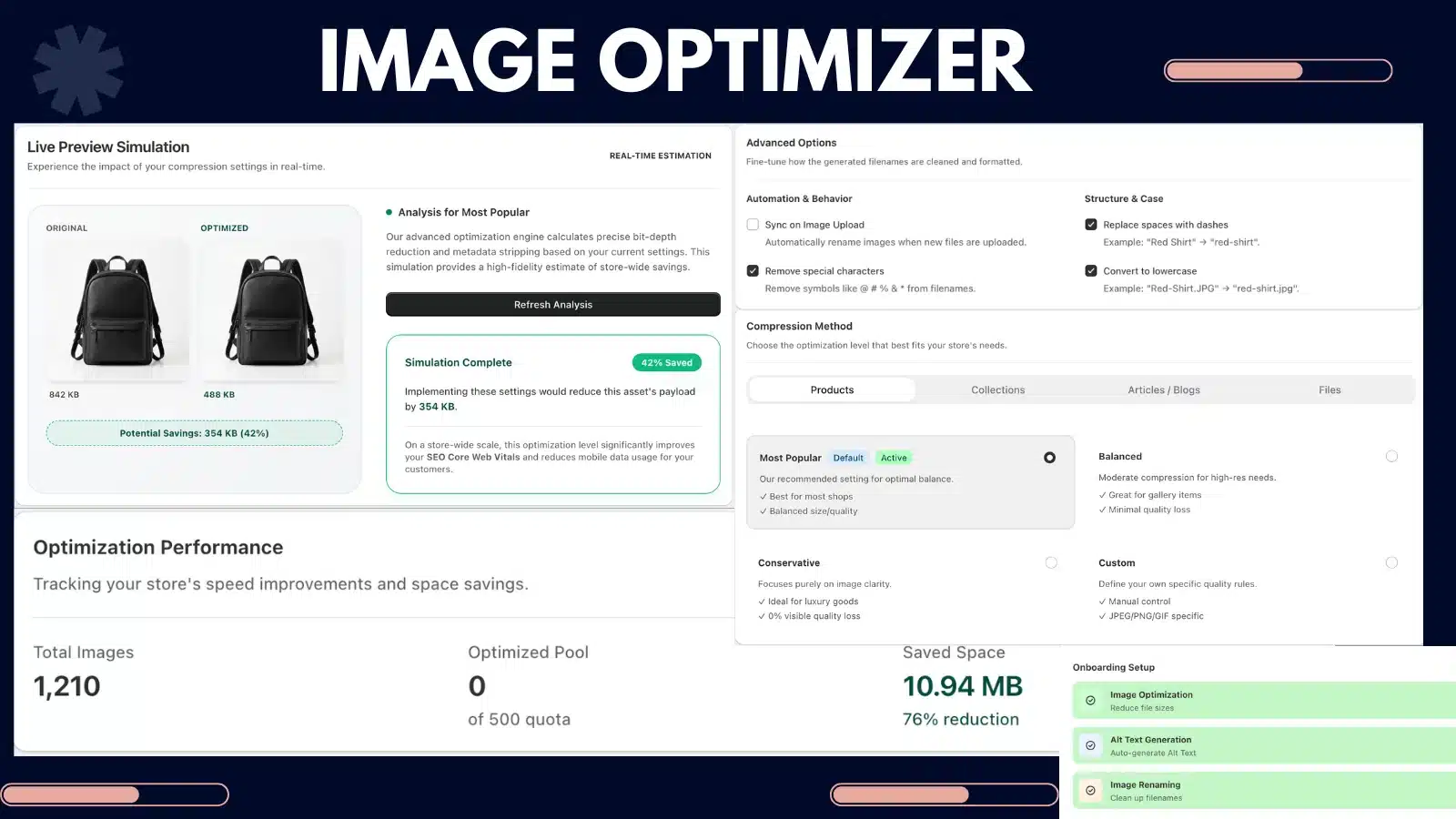
Step 2: Compress Shopify Product Images Without Sacrificing Quality
What image compression is and why it matters
Compression reduces a file’s size by encoding the same picture more efficiently. As a result, smaller files download faster, which is how image compression improves page speed, especially on mobile connections. Faster pages are also a quiet part of good technical SEO services work.
Lossy vs. lossless compression
Lossless compression shrinks a file without discarding any image data, so quality is unchanged. However, the savings are modest. In contrast, lossy compression discards some detail the eye is unlikely to notice, and it usually saves much more. For product photos, a moderate lossy setting often works well, so start there. Still, check fine detail like fabric texture and text on labels.
Balance file size, sharpness, and detail
Compress, then zoom in. When edges look smudged or gradients show banding, back off. Detail-heavy products, however, need gentler settings than flat-color ones.
When to compress manually and when to automate
For a handful of images, an image editor or a free compression tool is fine. Once you’re uploading regularly or managing hundreds of images, however, repeating that by hand becomes the bottleneck, which is when Shopify image optimization apps start to pay off.
Here is a hypothetical example, although actual results depend on the original image:
| Measure | Before | After |
|---|---|---|
| Dimensions | 4000 × 4000 px | 2048 × 2048 px |
| File size | 3.2 MB | 380 KB |
| Reduction | Baseline | About 88% |
SEO Image Optimizer by DMB also lists image compression among its features. It aims to reduce file sizes without a visible drop in quality, so repetitive compression doesn’t have to be a manual job.
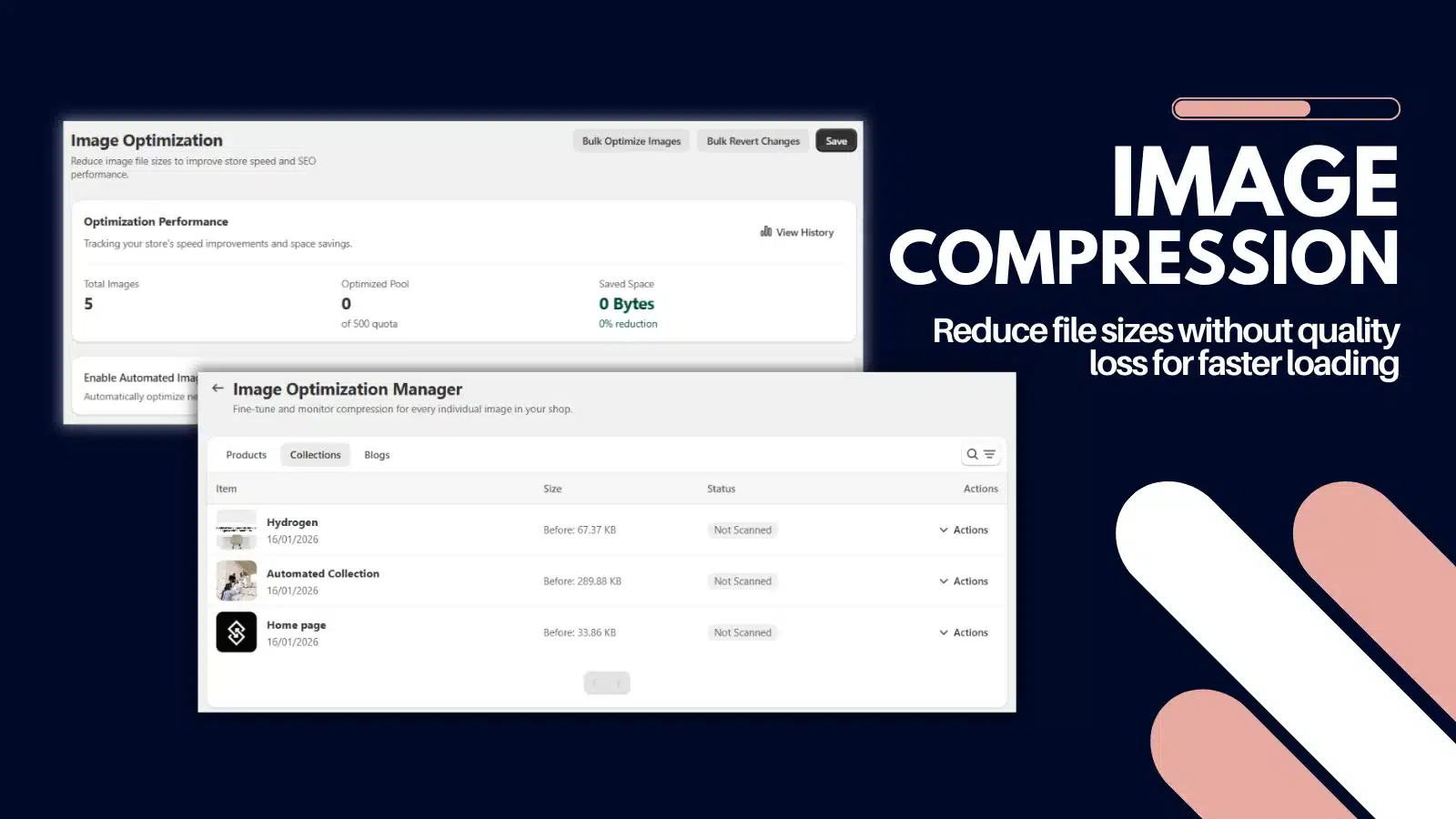
Step 3: Use SEO-Friendly Product Image File Names
How descriptive filenames help
A filename gives search engines a small hint about what an image shows. It’s a supporting relevance signal rather than a guaranteed ranking factor. So don’t expect a predictable boost from renaming alone. Naming rules also fit naturally into a wider Shopify SEO services plan.
How to rename Shopify product images
Use a few clear words that describe the product, separated by hyphens, in lowercase. Rename the file before you upload it, because Shopify keeps the original filename.
| Avoid | Better |
|---|---|
| IMG_1234.jpg | black-leather-crossbody-bag.jpg |
| product-final-2.jpg | womens-white-running-shoes.jpg |
| DSC0987.png | ceramic-coffee-mug-blue.png |
Filename mistakes to avoid
- Camera defaults like IMG_ or DSC, because they say nothing about the product
- Words like “final” or “copy”, since they add noise
- Spaces and special characters
- Keyword stuffing, for example repeating the same phrase several times
Keeping filenames consistent across a catalog
Pick one pattern, for example product name, then color or variant, and apply it everywhere. Consistency is easy to plan. However, it is hard to maintain by hand across hundreds of products.
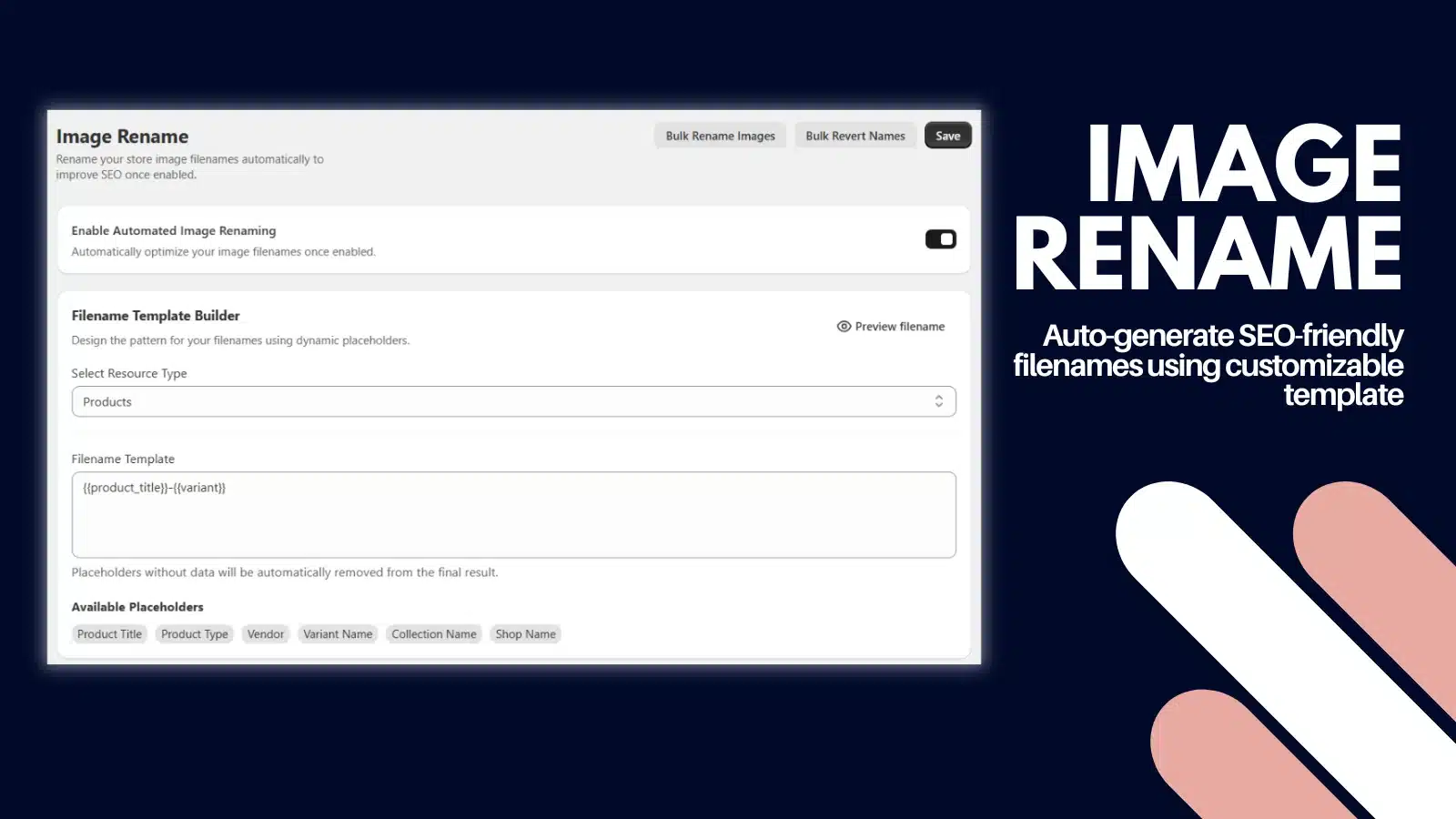
Step 4: Write Descriptive Alt Text for Shopify Product Images
What alt text is
Alt text is a short written description of an image. Screen readers read it aloud, and it appears when the image fails to load. It also gives search engines extra context. Clear, natural wording also comes easily to teams that already use SEO content writing services.
How to write it
Describe what’s actually in the image in plain language. Also include relevant details like color, material, or use. Aim for one short sentence, so skip phrases like “image of.”
| Image | Recommended alt text |
|---|---|
| Black handbag | Black leather crossbody handbag with an adjustable shoulder strap |
| Running shoes | White running shoes with breathable mesh uppers |
| Ceramic mug | Blue ceramic coffee mug with a curved handle |
Common mistakes
- Keyword stuffing, or forcing the same keyword into every image, since it reads poorly
- Leaving alt text empty, or repeating the product title on every image instead of describing it
- Describing something that isn’t in the picture, because that misleads shoppers
For more examples across niches, see Shopify image alt text best practices.
Managing missing or repetitive alt text
Filter your product list for images with no alt text first. Then fix the repetitive ones.
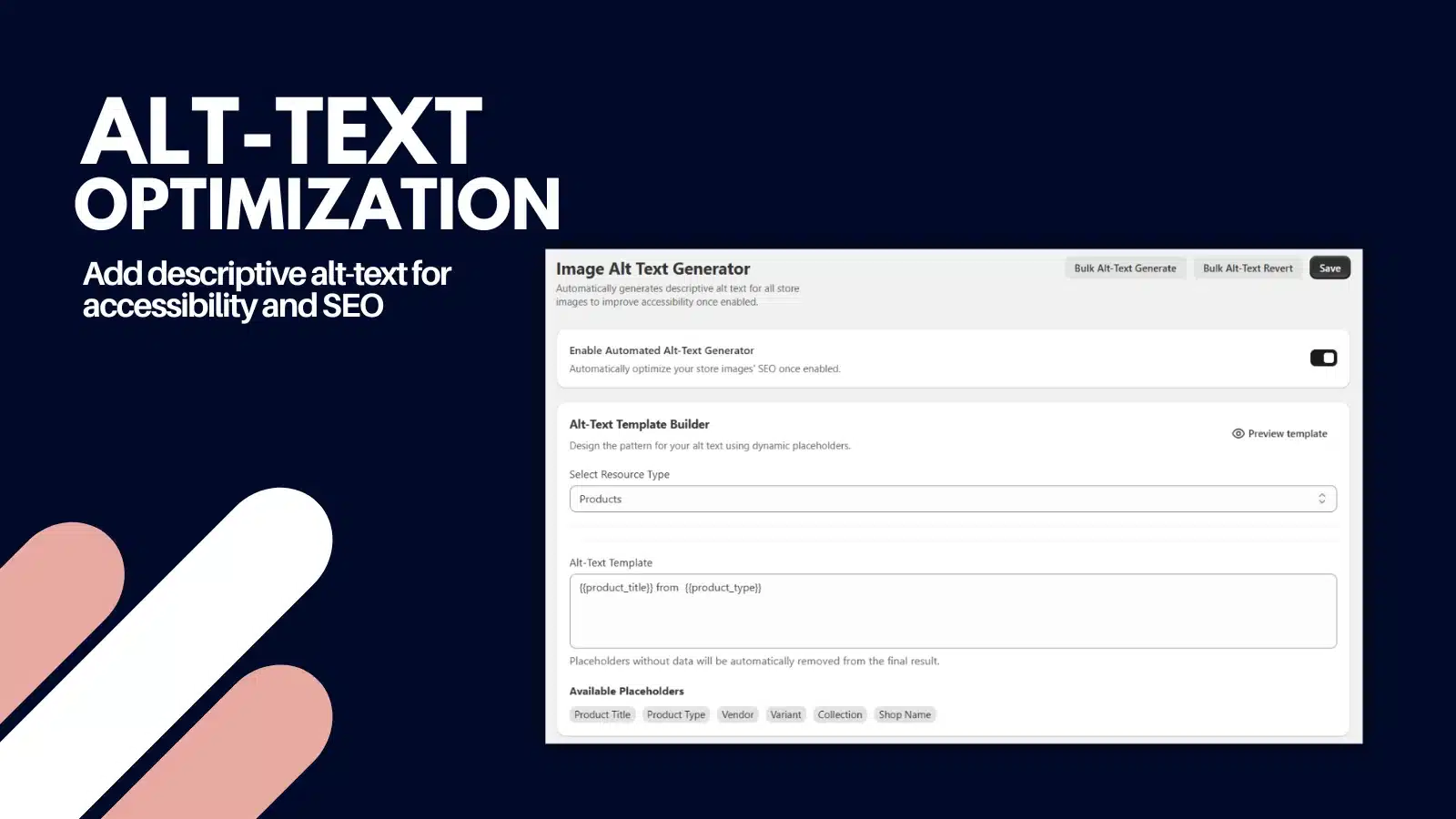
Step 5: Choose the Right Image Format for Your Products
Format choice affects both file size and quality, so pick the best image format for Shopify carefully. Here is how the three common formats compare:
- JPEG suits product photography because it compresses photos well at small file sizes.
- PNG suits graphics, logos, and images that need a transparent background. However, photos saved as PNG are usually much larger than the same photo as JPEG.
- WebP is a modern format that typically produces smaller files while keeping similar quality.
Shopify’s image delivery system can serve suitable formats, including WebP, to browsers that support them. As a result, you don’t necessarily need to convert every source image to WebP yourself. In fact, a clean, well-compressed JPEG or PNG is a fine starting point. If your theme controls how images display, Shopify web design services can help you adjust it safely.
Step 6: Improve Product Image Loading on Mobile Devices
Why oversized images hurt mobile
Phones often have slower connections and less processing power, so mobile image optimization matters more there. As a result, a gallery of heavy images can make a product page feel sluggish before the shopper sees anything useful.
Responsive delivery
Shopify themes can request differently sized versions of an image depending on the screen. As a result, a phone doesn’t have to download a desktop-sized file. This works best when the source image is a sensible size to begin with. In addition, a theme built with responsive web design in mind makes this easier.
Check the gallery and loading order
On a real phone, scroll a product page and watch what loads first. Then check that the gallery, thumbnails, and zoom behave smoothly.
Lazy loading and the main product image
Lazy loading delays images below the visible screen until a shopper scrolls near them, which saves bandwidth. However, the main product image at the top of the page is the exception. It should load right away rather than wait. Shopify themes generally handle this, but it’s worth confirming in yours.
Step 7: Audit Existing Product Images and Measure Performance
Audit your catalog on a regular schedule, ideally with a Shopify image optimization checklist. If you’d like an expert review, our SEO audit services can speed this up. Work through these checks:
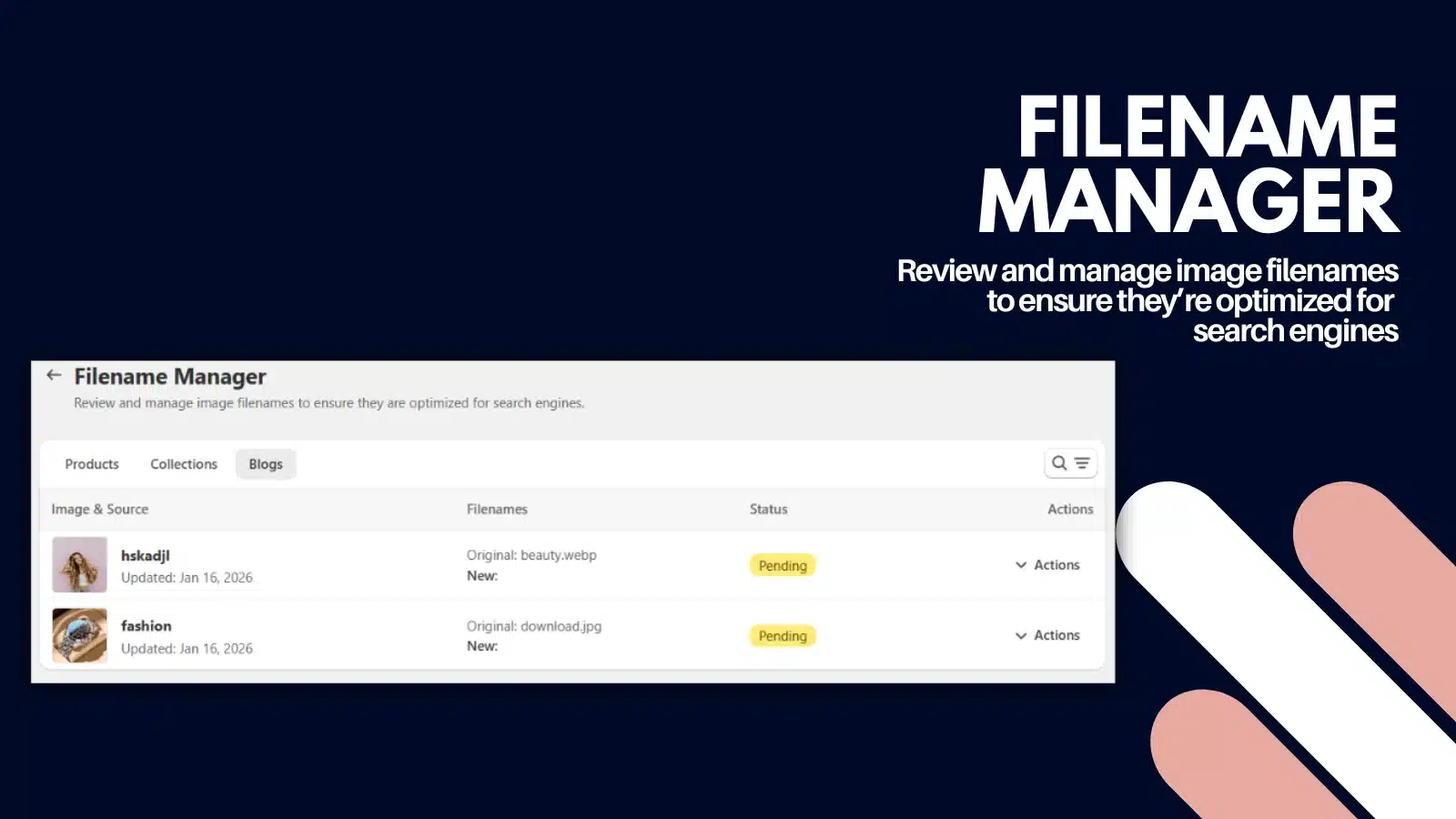
- Find missing alt text and generic filenames: Sort or filter your products so you spot images that need attention
- Identify large files: Look for oversized images, as well as unnecessary extra image variations
- Test key product pages: Use Google PageSpeed Insights, while reviewing mobile and desktop results separately, including your Core Web Vitals
- Recheck after making changes: Compare results, then see what actually improved
Image optimization is one part of site performance. Scripts, apps, fonts, and theme code can also affect loading speed. Therefore, don’t expect images alone to fix a slow store. Tracking real results with Google Analytics services also shows what actually changed.
How to Optimize Shopify Product Images in Bulk
Why manual optimization gets harder as your catalog grows
Renaming, resizing, compressing, and writing alt text for one image takes minutes. Doing it for 500 products with several images each, however, turns into weeks, which is why bulk image optimization matters. In addition, quality tends to drift as different people handle different batches.
Create consistent rules
Decide on a filename pattern and an alt text approach before you start. For example, use product name, then color or variant for filenames, and one plain-language sentence for alt text. Rules like these, in fact, make bulk work possible.
Process existing images in batches
Start with your best sellers or newest collections, then work outward. Batches also make it easier to catch problems early.
Set up a workflow for new images
Optimizing a back catalog is only half the job. New uploads need the same treatment, otherwise the backlog returns. Ongoing website maintenance services can also keep that routine on schedule.
Review changes before going store-wide
Whatever method you use, test it on a small group of products first. Then check the filenames, alt text, and image quality on the live pages before you apply it everywhere.
Where SEO Image Optimizer by DMB fits
If you’d rather not do this by hand, SEO Image Optimizer by DMB is a Shopify app built for this workflow. Its listing describes four capabilities:
- Image compression: Reduces file sizes without a visible drop in quality, so page speed improves
- Alt-text optimization: Generates descriptive alt text, so it supports accessibility and search
- SEO image renaming: Updates filenames while using custom templates and dynamic variables
- Auto-pilot: Processes your existing catalog in bulk, then syncs new uploads automatically
The app also works inside Shopify Admin and is currently listed in English.
Watch: How to Install and Set Up SEO Image Optimizer in Shopify (Video Tutorial)
Prefer to see it in action? This walkthrough shows how to install SEO Image Optimizer by DMB and set up image compression, alt text generation, automation, and image renaming. It also covers the theme speed checklist, performance metrics, and pricing plans.
Plans
According to the current App Store listing, every plan includes all features, while limits are based on image count:
| Plan | Price | Images |
|---|---|---|
| Free | $0 | Up to 500 |
| Silver | $8.99/month | Up to 5,000 |
| Gold | $19.99/month | Up to 15,000 |
Silver and Gold also include dedicated support and a free onboarding call. However, pricing can change, so confirm it on the live listing before you decide.
Explore SEO Image Optimizer by DMB Free on Shopify →
Frequently Asked Questions
1. How do I optimize product images on Shopify?
Resize and compress images, and give files descriptive names before uploading. Then add accurate alt text and check mobile loading. For large catalogs, use a bulk tool.
2. What is the best image size for Shopify product photos?
Shopify says 2048 × 2048 px usually looks best for square product images. It also accepts images up to 5000 × 5000 px and files under 20 MB.
3. Does compressing product images improve Shopify page speed?
Smaller files download faster, so compression can help, especially on mobile. However, scripts, apps, fonts, and theme code also affect speed. So our Shopify SEO services team looks at the whole page.
4. Do image filenames affect Shopify SEO?
Descriptive filenames give search engines a small hint about an image. They are a supporting signal rather than a guaranteed ranking factor.
5. How should I write alt text for Shopify product images?
Describe what’s in the image in one natural sentence, including details like color or material. Also avoid keyword stuffing, and skip filler like “image of.”
6. Does Shopify automatically compress product images?
Shopify can serve resized versions and formats like WebP to compatible browsers. However, that doesn’t replace preparing your source files first.
7. Can I optimize Shopify product images in bulk?
Yes. Set consistent rules and work in batches, but test on a small group first. Apps such as SEO Image Optimizer by DMB can also process an existing catalog and sync new uploads.
8. What is the best image format for Shopify product photos?
JPEG works well for most photos, PNG for transparency and graphics, and WebP where smaller files help. Since Shopify can serve WebP automatically, you don’t need to convert everything.
Optimize Your Shopify Product Images with SEO Image Optimizer by DMB
Overall, good product image SEO comes down to a few repeatable habits: suitable file sizes, descriptive filenames, and useful alt text on every image. Each one is simple. However, keeping all of them consistent across hundreds or thousands of images is where stores fall behind.
SEO Image Optimizer by DMB is designed to take that repetitive work off your plate. It offers image compression, alt-text optimization, filename renaming, and bulk processing with automation for new uploads. As a result, it supports a better experience and clearer image information. However, it can’t guarantee rankings, speed scores, or sales. Faster, clearer product pages also support conversion rate optimization goals.
Then review the app and decide whether it fits your store’s needs.
Key Takeaways
- Start with size: About 2048 px square usually looks best, and a smaller file that still looks sharp is the goal
- Compress, then zoom in: Check fine detail so savings never cost you visible quality
- Name and describe every image: Descriptive filenames and plain, accurate alt text help people because they also help search engines
- Measure and repeat: Audit your images, test key pages, then set a routine for new uploads
- Scale with rules or automation: Consistent patterns make bulk work possible, so an app can handle the repetition
(877) 522-7738
Blogs
Enterprise SEO: How Large Websites Can Scale Rankings Effectively
Large websites don’t win by fixing pages one at a time. Learn how enterprise SEO scales rankings through crawl control, template fixes, safe content scaling and AI search readiness.
How to Customize Sales Popups on Shopify to Match Your Brand
Learn how to customize sales popups on Shopify to match your brand, from colors, fonts, and position to message text, timing, and mobile testing.
How Shopify Sales Notifications Help Build Social Proof and Increase Sales
Learn how Shopify sales notifications build social proof, reduce shopper hesitation, and support sales, plus best practices and how to add them to your store.
Franchise SEO Challenges and How Multi-Location Brands Can Overcome Them
Franchise SEO is mostly a coordination problem. See the 10 challenges multi-location brands face, from duplicate location pages and listing drift to profile ownership and AI search, and how to fix each one at scale.
Google Ads Benchmarks 2026: What the Numbers Actually Mean for Your Account
Google Ads Search averages for 2026 are a 6.64% CTR, $5.42 CPC, 8.18% conversion rate and $66.69 cost per lead. Learn how to find your break-even CPL and which metric is holding your account back.
Best Shopify Sales Popup Apps to Boost Customer Trust and Conversions
Compare seven Shopify sales popup apps on features, customization, pricing, and ease of use, and learn how to pick one that builds trust without guesswork.
Franchise vs Enterprise Digital Marketing: Key Differences & Best Practices
Franchise and enterprise marketing both manage many locations under one brand, but they run on different rules. See who controls the budget, brand and data in each model, and the best practices that work for both.
How to Add a Shopify Sales Popup: Step-by-Step Guide
Learn how to add a Shopify sales popup in seven steps. Pick an app, set display rules, test on mobile, and track whether it works, with no coding needed.
Google Partner Rewards Store Not Working? We Hit a Redirect Loop, and Here’s What to Do
Stuck in a Google Partner Rewards Store redirect loop? Discover the exact causes behind the login bug and practical troubleshooting steps to redeem your partner points.
GloriaFood Is Shutting Down: Your 7-Step Plan and a Replacement to Try
With Oracle discontinuing GloriaFood, restaurants must plan ahead: explore a 7-step migration blueprint, data export tips, and top online ordering replacements.
Best Shopify Image Optimization Apps: How to Choose the Right Tool for Your Store
Learn what to look for in a Shopify image optimization app, the main types of tools, how to compare apps fairly, and the mistakes to avoid when choosing the right one.
Shopify Image Optimization Checklist: What to Do Before and After Uploading Product Photos
Use this Shopify image optimization checklist to prepare product photos before you upload, finish the job after, avoid common mistakes, and handle large catalogs in bulk.
Beehiiv Newsletter Platform: Pricing, Features, and Monetization Tools
Explore the beehiiv newsletter platform to streamline your communication and engage with your audience effectively.
Shopify Core Web Vitals and Images: How to Find and Fix Image-Related Speed Issues
Learn how images affect Shopify Core Web Vitals, how to find image-related speed issues, the most common mistakes, and how to fix them, including for large product catalogs.
Shopify Fake Cart Bot Attack: What Stopped 500+ Fake Carts an Hour (and a Script We Can’t Rule Out)
A client’s Shopify store was hit with 500+ fake carts an hour, and captchas, rate limits and bot apps didn’t stop it. Here’s why the traffic bypassed our security, the one fix that worked, and a third-party script lead we’re still tracing.
Getting information about your case and your options is your FIRST move. Get a FREE case evaluation now…
Find Yourself a Marketing Expert Near You!
(877) 522-7738