
Shopify Core Web Vitals and Images: How to Find and Fix Image-Related Speed Issues
TL;DR:
- What it is: Core Web Vitals measure loading speed, responsiveness, and visual stability. Images affect two of the three metrics directly: LCP and CLS.
- What to do: Find the image behind your LCP, then compress and resize it. Also define image dimensions, and keep the main image out of lazy loading.
- What it can’t do: Improving Core Web Vitals doesn’t guarantee higher rankings or more sales. Moreover, scripts, apps, fonts, and theme code also affect speed.
- How to scale it: For large catalogs, SEO Image Optimizer by DMB handles compression, bulk processing, and new uploads. Also, its free plan covers up to 500 images.
On most Shopify stores, images are the heaviest things on the page. A product gallery, a collection grid, and a hero banner can add up to several megabytes before a shopper has seen a single product. That weight is one of the most common reasons a store feels slow.
Google measures part of that experience with Core Web Vitals, a set of metrics for loading speed, responsiveness, and visual stability. They’re tied to what shoppers actually feel, and they’re part of Google’s page experience signals, so they’re worth paying attention to. They’re one factor among many, though, and improving them doesn’t guarantee higher rankings or more sales.
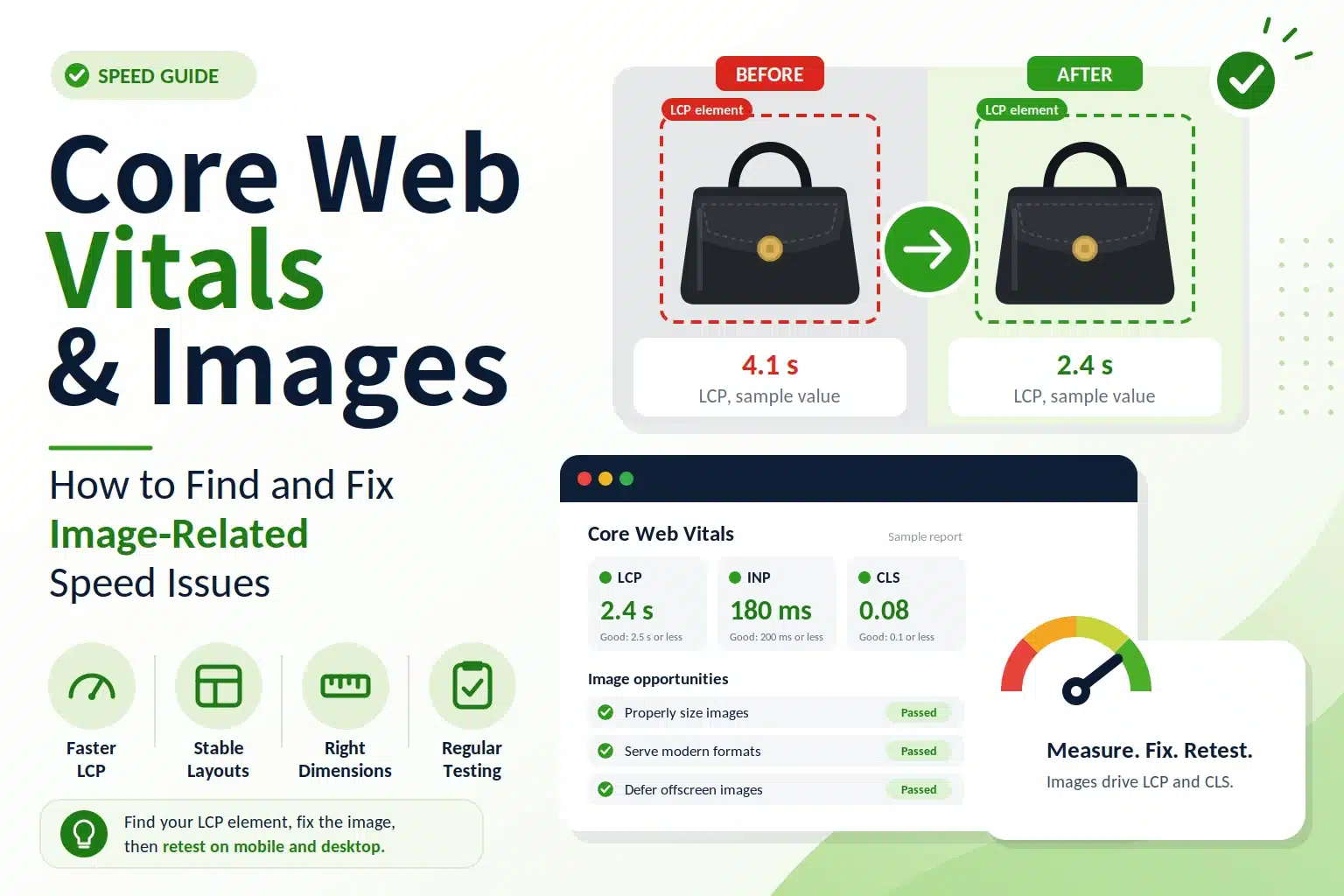
Images affect two of the three metrics directly: how quickly the main content appears and how stable the layout is while it loads. This guide explains each metric, how to tell whether images are causing your problems, the most common image mistakes, and how to fix them, including how to handle a large catalog.
What Are Core Web Vitals for Shopify?
Core Web Vitals also sit at the heart of modern technical SEO services for ecommerce. There are three metrics:
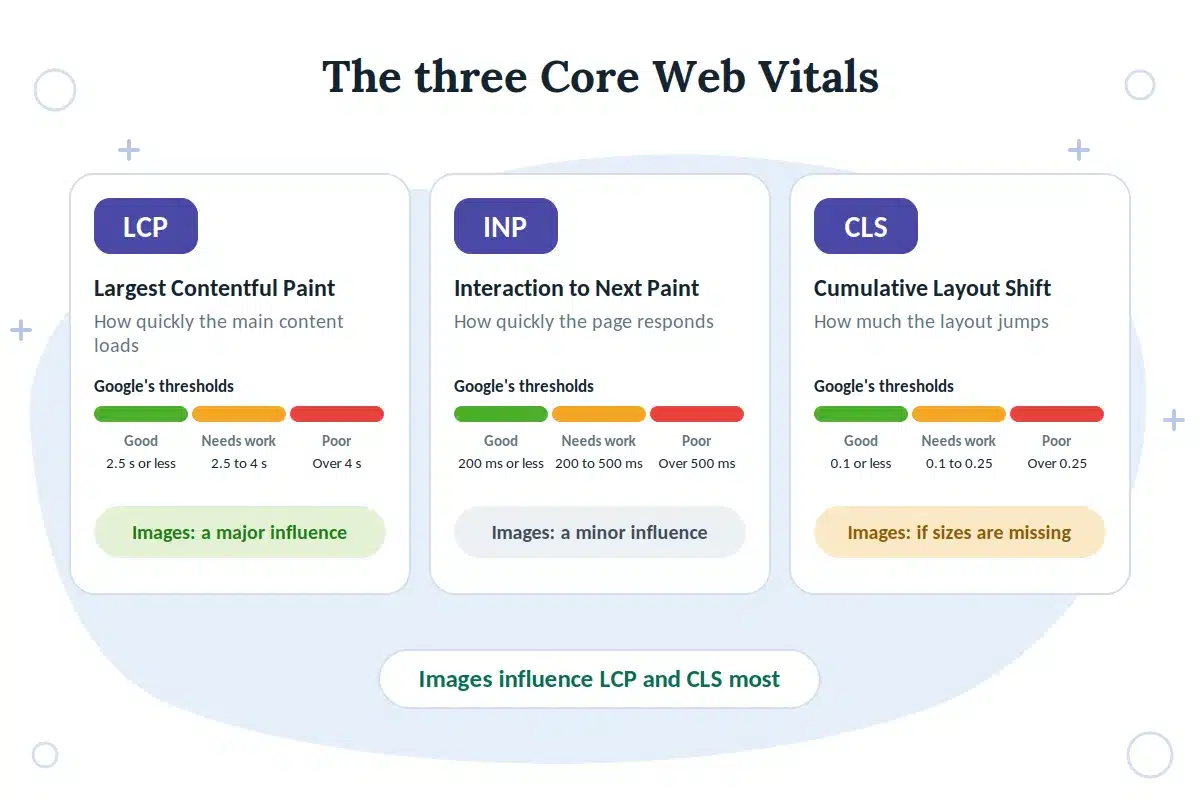
- Largest Contentful Paint (LCP): How quickly the main content of the page loads. On product pages, however, the largest element is often the main product image.
- Interaction to Next Paint (INP): How quickly the page responds when a shopper taps, clicks, or types.
- Cumulative Layout Shift (CLS): How much the layout shifts unexpectedly while the page loads, such as content jumping when an image appears.
Here are Google’s recommended thresholds, assessed at the 75th percentile of page loads:
| Metric | Good | Needs improvement | Poor |
|---|---|---|---|
| LCP | 2.5 seconds or less | 2.5 to 4 seconds | Over 4 seconds |
| INP | 200 milliseconds or less | 200 to 500 milliseconds | Over 500 milliseconds |
| CLS | 0.1 or less | 0.1 to 0.25 | Over 0.25 |
Images influence LCP and CLS most. INP, in contrast, is driven mainly by scripts and interactions, so image work usually affects it less. Google can update these metrics and thresholds, so check its current documentation.
How to Identify Image-Related Speed Issues on Shopify
Finding the real cause comes before fixing anything. A structured review, such as our SEO audit services, can also speed this up.
Test with Google PageSpeed Insights
Enter the URL of a key product page and a collection page, and run the report. Then review mobile and desktop separately. The report lists opportunities such as properly sized images and efficient formats. It also names the element behind your LCP.
Review Core Web Vitals in Google Search Console
The Core Web Vitals report groups your pages by status, based on real visitor data. As a result, it shows which groups of pages are slow, so you can prioritize them.
Look for the usual image culprits
Also check for oversized product images, slow-loading hero banners, and images without defined dimensions.
Tell image problems apart from other causes
When the LCP element is an image and PageSpeed flags its size or format, images are likely part of the problem. However, if the LCP element loads fine but the page still feels slow, or INP is poor, look at scripts, apps, fonts, and theme code instead. Layout shifts caused by images, in addition, usually show up as content jumping as photos load.
Common Image Problems That Hurt Shopify Core Web Vitals
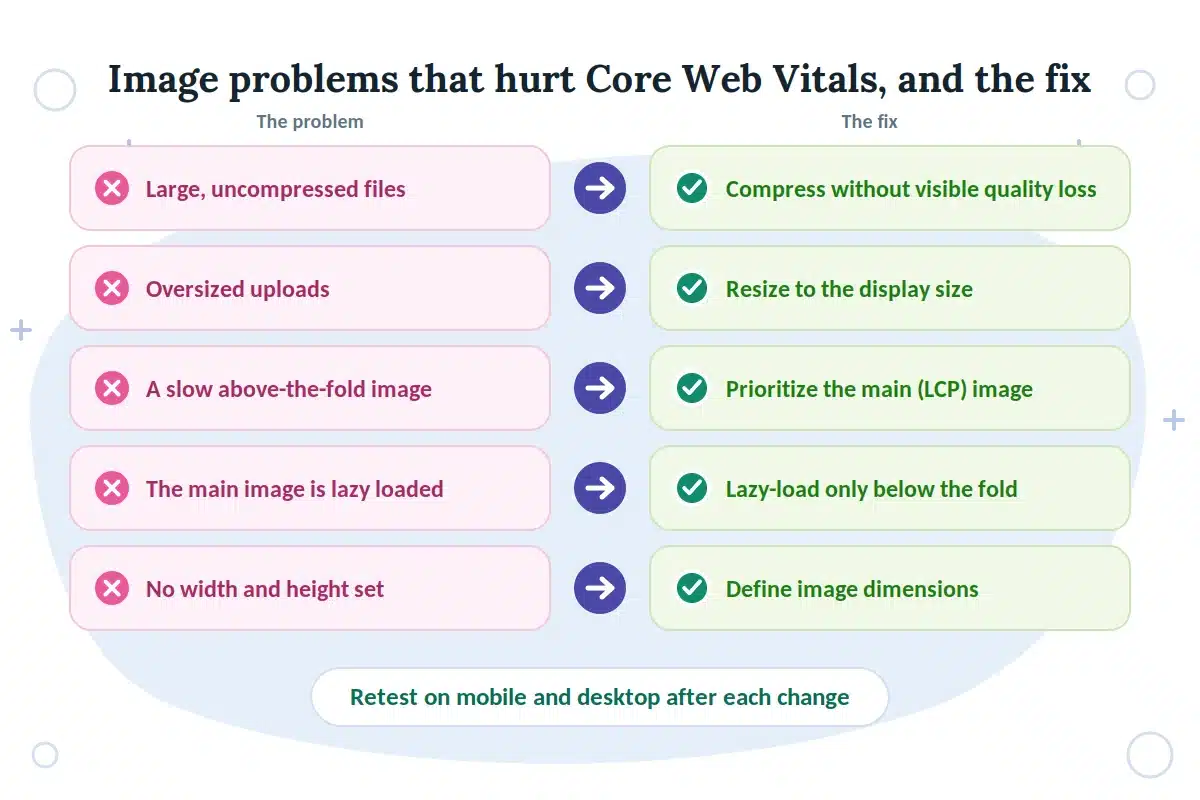
Five image mistakes cause most of the damage, so start there. Many of them are quick to fix once you know where to look. A broader pass with ecommerce optimization services can also find them across every template.
- Large, uncompressed files. Straight-from-camera photos can be several megabytes each.
- Incorrect dimensions and oversized uploads. A 5000-pixel image shown at 800 pixels, for example, wastes bandwidth. Also, Shopify’s guidance says 2048 × 2048 px usually looks best for square product images.
- Slow-loading above-the-fold images. When the hero banner or main product image is heavy, or the browser discovers it late, LCP suffers.
- Improper lazy loading. Lazy loading below-the-fold images helps. However, lazy loading the main image at the top of the page delays it and can hurt LCP.
- Images without defined width and height. The browser can’t reserve space, so content jumps when the image appears, which raises CLS.
How to Fix Image-Related Core Web Vitals Issues
Compress images without noticeably reducing quality
Reduce file sizes, then zoom in on detail to check the result. A moderate setting usually keeps product photos looking right, so start there.
Resize images to match their display dimensions
Upload a sensible source size instead of the largest file you have. Resizing first, therefore, makes compression more effective.
Use suitable formats
Use JPEG for photos, PNG for transparency, and WebP for efficient delivery. AVIF is another modern format with strong compression, but check support in Shopify and your workflow before relying on it. Shopify can also serve optimized formats such as WebP to compatible browsers automatically.
Prioritize the LCP image and lazy-load the rest
The main image at the top of the page should load right away rather than lazily. However, images further down can be lazy loaded. Many themes handle this already, so check yours before changing code.
Specify image dimensions to reduce layout shifts
Images should have defined width and height, or a set aspect ratio, so the browser reserves space before they load. Well-built themes usually do this. When you see content jumping, ask a developer to check the theme. Also, our Shopify web design services team can do that safely.
Use descriptive alt text and SEO-friendly filenames
These don’t affect speed, but they belong in the same cleanup pass, since you’re already touching every image. Clear wording from SEO content writing services also helps here.
How to Optimize Shopify Images at Scale
Fixing one product page’s images is easy. However, fixing 2,000 products by hand, and keeping every new upload optimized, is not. As a result, compressing, naming, and describing each image individually quickly becomes more work than anyone has time for.
That is why SEO Image Optimizer by DMB is a Shopify app built to take over that repetitive work. Its listing describes:
- Image compression: Reduces file sizes without a visible drop in quality, so pages get lighter
- Bulk optimization: Processes your existing catalog in one pass, so you skip file-by-file edits
- Automation for new uploads: Syncs and optimizes images when they’re added
- Alt-text generation and SEO-friendly renaming: Handles the metadata side at the same time
Be clear about the scope. The listing covers compression and metadata. Things like resizing templates, LCP image priority, lazy loading, and image dimensions are handled by your theme. Therefore, they’re still worth checking separately. A free plan covers up to 500 images, while paid plans cover larger catalogs. Ongoing website maintenance services can also keep new uploads on track.
Explore SEO Image Optimizer by DMB Free on Shopify →
Shopify Image Optimization Checklist
Use this checklist after every major change. Also, for a store-wide review, our ecommerce SEO services team can help.
- Compress large image files
- Resize images appropriately
- Optimize the main LCP image
- Lazy-load below-the-fold images
- Set image dimensions to prevent layout shifts
- Add descriptive alt text and relevant filenames
- Retest Core Web Vitals after making changes
Frequently Asked Questions
1. Do product images affect Shopify Core Web Vitals?
Yes. Images often drive Largest Contentful Paint, while images without defined dimensions can cause layout shifts. However, images matter less for Interaction to Next Paint, which depends more on scripts and interactions.
2. How do I improve LCP on Shopify?
Find your LCP element in PageSpeed Insights. When it’s an image, resize and compress it, make sure it isn’t lazy loaded, and check that your theme loads it early. Also review apps and scripts that delay rendering.
3. Does image compression improve page speed?
Usually, yes. Smaller files download faster, especially on mobile. However, speed also depends on scripts, apps, fonts, and theme code. So compression helps most when images are a major part of the slowdown.
4. Can image optimization apps improve Shopify performance?
They can help with compression and repetitive tasks at scale, so they can reduce image weight. However, they can’t fix theme or script issues, so our Shopify SEO services team can review those. Measure before and after to see what changed.
5. How often should I test my Shopify store’s Core Web Vitals?
Test after any meaningful change, for example a new theme, a new app, or a large batch of new images. Also check Search Console periodically. Scores shift over time, so regular testing catches problems early.
Conclusion: Build a Faster Shopify Store with Image Optimization
The pattern is straightforward. First find out whether images are behind your Core Web Vitals problems, then fix the biggest ones first, and keep testing as your catalog and theme change. In fact, compression, sensible dimensions, the right loading priority, and defined image sizes cover most image-related issues.
Images are one part of performance, so keep an eye on apps, scripts, and theme code too. Faster pages also support conversion rate optimization goals.
When manual image work is eating your time, SEO Image Optimizer by DMB can help with compression, bulk processing, and new uploads.
Key Takeaways
- Images affect LCP and CLS most: INP depends more on scripts, so check those separately
- Find the cause first: Use PageSpeed Insights and Search Console, then fix the biggest image problems
- Fix the basics: Compress, resize, then load the main image first, and define image dimensions
- Scale with care: An app can handle compression and metadata, while your theme controls loading priority
- Keep testing: Retest after changes, because scores shift and no fix guarantees rankings or sales
(877) 522-7738
Blogs
Enterprise SEO: How Large Websites Can Scale Rankings Effectively
Large websites don’t win by fixing pages one at a time. Learn how enterprise SEO scales rankings through crawl control, template fixes, safe content scaling and AI search readiness.
How to Customize Sales Popups on Shopify to Match Your Brand
Learn how to customize sales popups on Shopify to match your brand, from colors, fonts, and position to message text, timing, and mobile testing.
How Shopify Sales Notifications Help Build Social Proof and Increase Sales
Learn how Shopify sales notifications build social proof, reduce shopper hesitation, and support sales, plus best practices and how to add them to your store.
Franchise SEO Challenges and How Multi-Location Brands Can Overcome Them
Franchise SEO is mostly a coordination problem. See the 10 challenges multi-location brands face, from duplicate location pages and listing drift to profile ownership and AI search, and how to fix each one at scale.
Google Ads Benchmarks 2026: What the Numbers Actually Mean for Your Account
Google Ads Search averages for 2026 are a 6.64% CTR, $5.42 CPC, 8.18% conversion rate and $66.69 cost per lead. Learn how to find your break-even CPL and which metric is holding your account back.
Best Shopify Sales Popup Apps to Boost Customer Trust and Conversions
Compare seven Shopify sales popup apps on features, customization, pricing, and ease of use, and learn how to pick one that builds trust without guesswork.
Franchise vs Enterprise Digital Marketing: Key Differences & Best Practices
Franchise and enterprise marketing both manage many locations under one brand, but they run on different rules. See who controls the budget, brand and data in each model, and the best practices that work for both.
How to Add a Shopify Sales Popup: Step-by-Step Guide
Learn how to add a Shopify sales popup in seven steps. Pick an app, set display rules, test on mobile, and track whether it works, with no coding needed.
Google Partner Rewards Store Not Working? We Hit a Redirect Loop, and Here’s What to Do
Stuck in a Google Partner Rewards Store redirect loop? Discover the exact causes behind the login bug and practical troubleshooting steps to redeem your partner points.
GloriaFood Is Shutting Down: Your 7-Step Plan and a Replacement to Try
With Oracle discontinuing GloriaFood, restaurants must plan ahead: explore a 7-step migration blueprint, data export tips, and top online ordering replacements.
Best Shopify Image Optimization Apps: How to Choose the Right Tool for Your Store
Learn what to look for in a Shopify image optimization app, the main types of tools, how to compare apps fairly, and the mistakes to avoid when choosing the right one.
Shopify Image Optimization Checklist: What to Do Before and After Uploading Product Photos
Use this Shopify image optimization checklist to prepare product photos before you upload, finish the job after, avoid common mistakes, and handle large catalogs in bulk.
Beehiiv Newsletter Platform: Pricing, Features, and Monetization Tools
Explore the beehiiv newsletter platform to streamline your communication and engage with your audience effectively.
Shopify Fake Cart Bot Attack: What Stopped 500+ Fake Carts an Hour (and a Script We Can’t Rule Out)
A client’s Shopify store was hit with 500+ fake carts an hour, and captchas, rate limits and bot apps didn’t stop it. Here’s why the traffic bypassed our security, the one fix that worked, and a third-party script lead we’re still tracing.
JPEG vs. PNG vs. WebP: Which Image Format Is Best for Shopify Stores?
Compare JPEG, PNG, and WebP for Shopify stores, see which format suits each image type, and learn if WebP speeds up your store and how to optimize images without losing quality.
Getting information about your case and your options is your FIRST move. Get a FREE case evaluation now…
Find Yourself a Marketing Expert Near You!
(877) 522-7738