
Shopify Image Optimization Checklist: What to Do Before and After Uploading Product Photos
TL;DR:
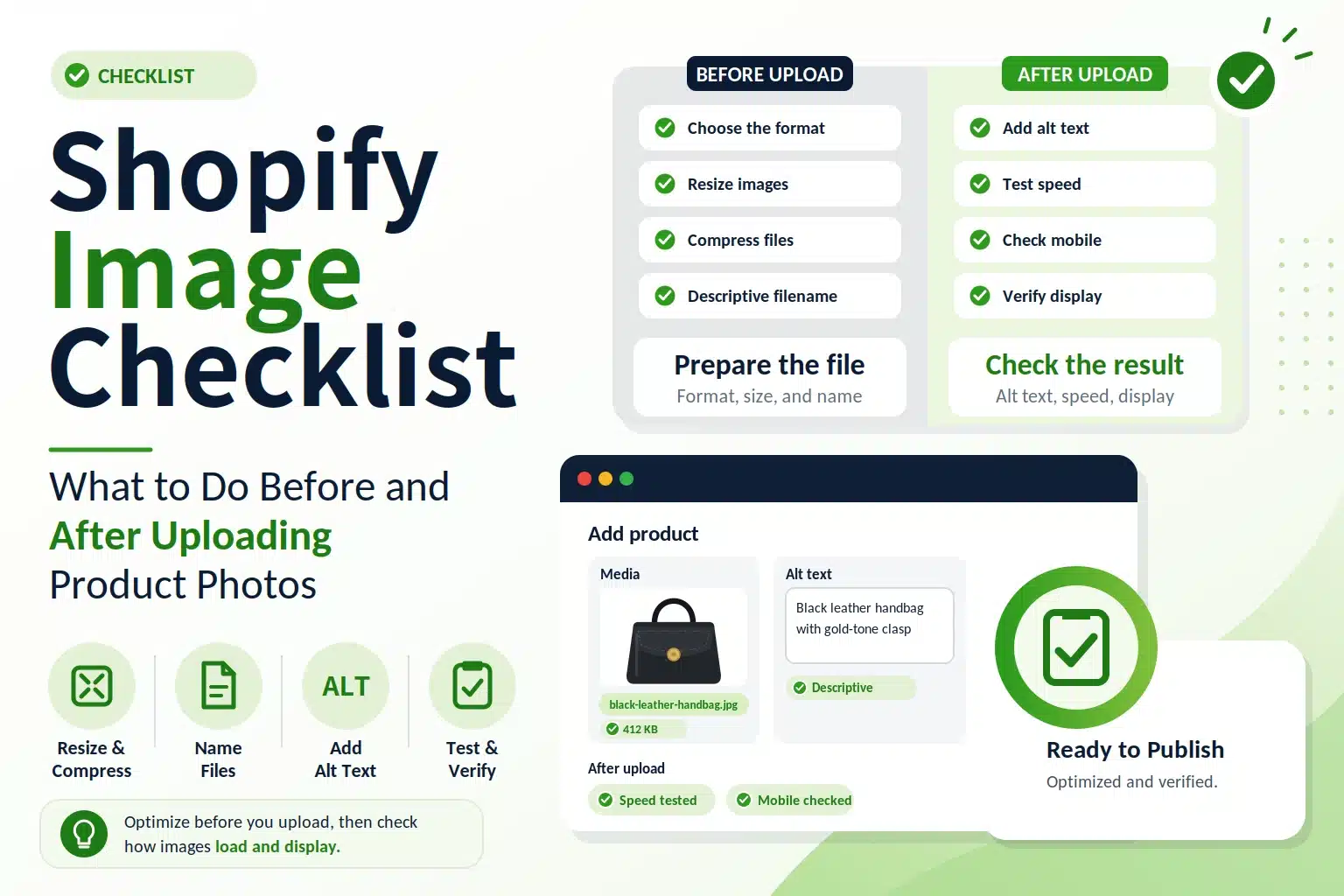
- What it is: A two-stage checklist for Shopify product photos. Before you upload, choose a format, resize, compress, and name the file. After you upload, add alt text and check loading, mobile display, and layout.
- What to do: Work through each item for every new product. Also use the same steps each time, so results stay consistent.
- What it can’t do: Optimization supports speed, accessibility, and discoverability. However, it doesn’t guarantee rankings or sales.
- How to scale it: For large catalogs, SEO Image Optimizer by DMB handles compression, renaming, alt text, and new uploads. Also, its free plan covers up to 500 images.
Product photos do more work than almost anything else on a Shopify store. They sell the product, they load on every page that shows it, and they carry information that search engines and screen readers depend on. When they’re optimized, pages load faster, shoppers see products clearly, the store is more accessible, and your images are easier for search engines to understand.
The catch is that optimization happens in two places. Some of it needs to happen before you upload a photo, such as choosing a format, resizing, compressing, and naming the file. The rest happens after: writing alt text, checking how the image loads, and confirming it displays correctly.
This checklist walks through both stages, covers the mistakes that trip up most stores, and explains how to handle the work in bulk once your catalog grows. Optimization supports speed, accessibility, and discoverability, but it doesn’t guarantee rankings or sales.
Before Uploading: Shopify Image Optimization Checklist
Do these in your image editor or file manager, before the photo reaches Shopify. Great results also start with great source photos, which is where product photography services help.
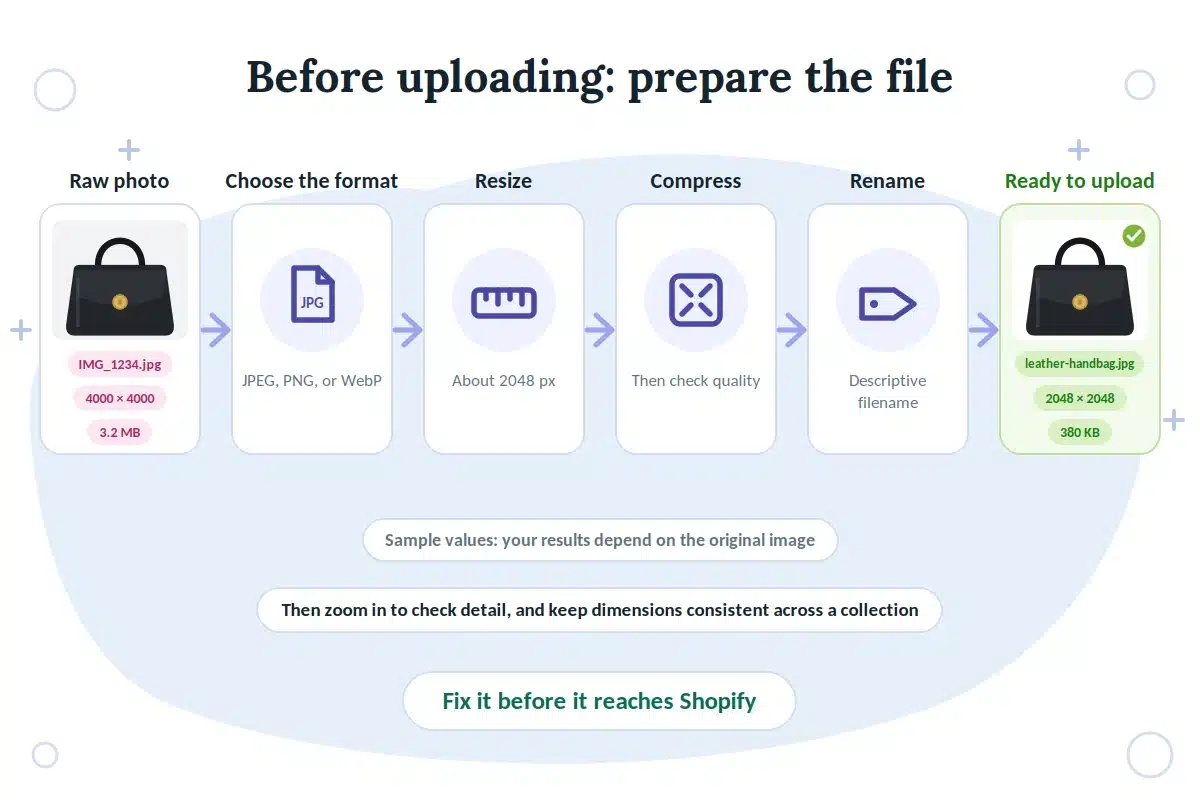
- Choose the right format: For the best image format for Shopify, JPEG suits most product photos, PNG suits transparency and sharp graphics, and WebP offers smaller files when quality stays similar. AVIF is another modern option, but check support in Shopify and your workflow before relying on it. Shopify can serve WebP to compatible browsers on its own, so you don’t have to convert everything.
- Resize product images: Match dimensions to how they’ll display. Shopify’s guidance says 2048 × 2048 px usually looks best for square product images. Anything much larger, however, adds weight without improving what shoppers see.
- Compress image files: Use image compression for faster pages to reduce the file size, then zoom in on detail to check the result.
- Use descriptive filenames: Name the file for what’s in it, using relevant product words in lowercase with hyphens for SEO-friendly file names. For example, use black-leather-handbag.jpg, not IMG_1234.jpg. Shopify keeps the original filename, so rename before uploading.
- Maintain image quality: Check that product details, colors, and textures still look right. Compression that smudges fabric or shifts colors, in fact, costs you more than it saves.
- Keep dimensions consistent: Using the same aspect ratio across a collection keeps the grid tidy, so it also avoids awkward cropping.
After Uploading: Shopify Image SEO Checklist
Once the images are in your store, finish the job. Our technical SEO services team can also check loading and layout for you.
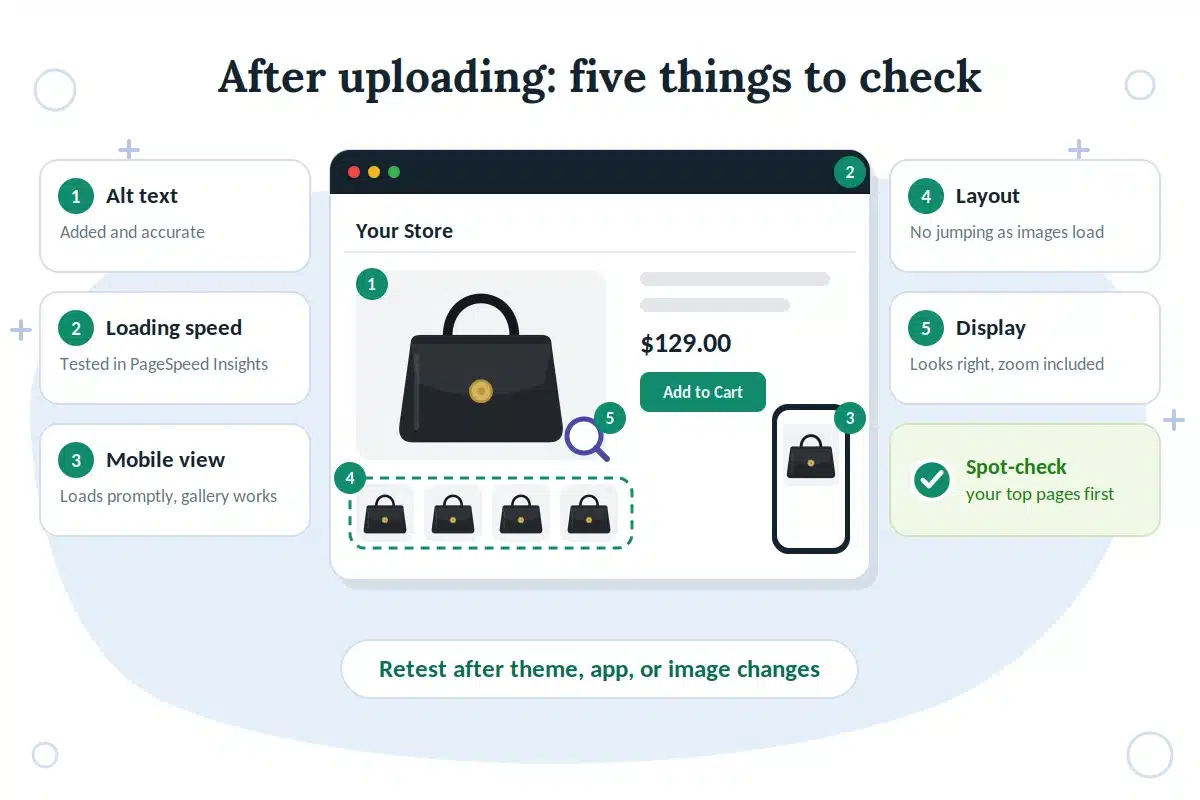
- Add descriptive alt text: Describe what’s actually in the image in one clear sentence, following alt text best practices. It also helps screen reader users and gives search engines context.
- Check image loading speed: Test important product pages with Google PageSpeed Insights, then note whether images are flagged or hurting your Core Web Vitals.
- Review mobile performance: Browse the page on a real phone to check mobile image optimization. Then make sure images load promptly and the gallery works smoothly.
- Check dimensions and layout: Watch for content jumping as images load. That usually points to missing image dimensions, so it is typically a theme issue.
- Verify display: Confirm images look right on product pages and collection pages, as well as anywhere else they appear, including zoom.
Common Shopify Image Optimization Mistakes to Avoid
Six mistakes trip up most stores. Therefore, a routine review, such as our SEO audit services, helps catch them early.
- Uploading oversized or uncompressed images: Camera originals can be several megabytes each, so they slow every page they appear on.
- Using generic filenames like IMG_1234.jpg: Because they tell search engines nothing about the product, rename files first.
- Leaving important product images without alt text. That’s a gap for accessibility, and it also misses context for search engines.
- Overusing keywords in filenames and alt text: Stuffed text reads badly, so it isn’t more helpful.
- Lazy loading above-the-fold images: The main product image at the top of the page needs to load right away rather than wait.
- Ignoring image performance as the catalog grows: Small problems multiply across hundreds of products, so recheck periodically.
How to Optimize Shopify Images in Bulk
A checklist is easy to follow for ten products. However, at a thousand products, bulk image optimization matters, because editing each image by hand takes days, and the results drift as different people handle different batches. As a result, the work is repetitive: compress, rename, describe, repeat.
That is why SEO Image Optimizer by DMB is a Shopify app built to take over that repetition. Its listing describes:
- Image compression: Reduces file sizes without a visible drop in quality, so pages get lighter
- SEO-friendly renaming: Updates filenames while using custom templates and dynamic variables
- Alt-text generation: Creates descriptive alt text, so accessibility and search both benefit
- Bulk and ongoing optimization: Processes your existing catalog, then syncs and optimizes new uploads
As a result, that covers several checklist items in one pass. However, it doesn’t replace the judgment steps, like choosing formats, checking quality, and testing pages. A free plan covers up to 500 images, while paid plans cover larger catalogs. Ongoing website maintenance services can also keep new uploads on the same standard.
Explore SEO Image Optimizer by DMB Free on Shopify →
Frequently Asked Questions
1. What is the best image size for Shopify products?
Shopify says 2048 × 2048 px usually looks best for square product images. It also accepts images up to 5000 × 5000 px and files under 20 MB. Check its current media documentation, since limits can change, and keep aspect ratios consistent. In addition, our ecommerce SEO services team can help with the rest.
2. Which image format is best for Shopify?
JPEG works well for most product photos, PNG for transparency and graphics, while WebP gives smaller files at similar quality. Shopify can serve WebP to compatible browsers automatically, so you don’t need to convert everything by hand.
3. Does image compression affect product quality?
It can if it’s too aggressive, but moderate compression is usually hard to notice. Compress, then zoom in on edges, textures, and colors. When detail looks smudged, use a gentler setting.
4. How do I add SEO-friendly alt text in Shopify?
In the Shopify admin, open a product, then select an image and add alt text. Describe what’s actually in the image in one clear sentence, with relevant details and no keyword stuffing.
5. Can I optimize existing Shopify images in bulk?
Yes. Set consistent rules for compression, filenames, and alt text, then process in batches or use an app. SEO Image Optimizer by DMB lists bulk processing for existing catalogs. Then test on a small batch and review the results first.
Conclusion: Keep Your Shopify Images SEO-Ready
The checklist comes down to two stages. Before you upload: choose a format, resize, compress, name the file, and protect quality. Afterward, add alt text, check loading and mobile performance, and verify how images display.
Make it part of your regular product image optimization workflow, so every new product follows the same steps. A store-wide review from our ecommerce optimization services team can also keep that workflow on track.
When you’d like help with the repetitive parts, SEO Image Optimizer by DMB can handle compression, renaming, alt text, and new uploads.
Key Takeaways
- Two stages: Prepare images before you upload, then finish the job after
- Before uploading: Choose a format, resize, compress, name the file, and protect quality
- After uploading: Add alt text, then check loading and mobile display, and verify layout
- Avoid the common mistakes: Skip oversized files, generic names, missing alt text, and lazy-loaded main images, because each one hurts
- Keep expectations realistic: Optimization supports speed and discoverability, but it can’t guarantee rankings or sales
Explore SEO Image Optimizer by DMB on the Shopify App Store →
(877) 522-7738
Blogs
Enterprise SEO: How Large Websites Can Scale Rankings Effectively
Large websites don’t win by fixing pages one at a time. Learn how enterprise SEO scales rankings through crawl control, template fixes, safe content scaling and AI search readiness.
How to Customize Sales Popups on Shopify to Match Your Brand
Learn how to customize sales popups on Shopify to match your brand, from colors, fonts, and position to message text, timing, and mobile testing.
How Shopify Sales Notifications Help Build Social Proof and Increase Sales
Learn how Shopify sales notifications build social proof, reduce shopper hesitation, and support sales, plus best practices and how to add them to your store.
Franchise SEO Challenges and How Multi-Location Brands Can Overcome Them
Franchise SEO is mostly a coordination problem. See the 10 challenges multi-location brands face, from duplicate location pages and listing drift to profile ownership and AI search, and how to fix each one at scale.
Google Ads Benchmarks 2026: What the Numbers Actually Mean for Your Account
Google Ads Search averages for 2026 are a 6.64% CTR, $5.42 CPC, 8.18% conversion rate and $66.69 cost per lead. Learn how to find your break-even CPL and which metric is holding your account back.
Best Shopify Sales Popup Apps to Boost Customer Trust and Conversions
Compare seven Shopify sales popup apps on features, customization, pricing, and ease of use, and learn how to pick one that builds trust without guesswork.
Franchise vs Enterprise Digital Marketing: Key Differences & Best Practices
Franchise and enterprise marketing both manage many locations under one brand, but they run on different rules. See who controls the budget, brand and data in each model, and the best practices that work for both.
How to Add a Shopify Sales Popup: Step-by-Step Guide
Learn how to add a Shopify sales popup in seven steps. Pick an app, set display rules, test on mobile, and track whether it works, with no coding needed.
Google Partner Rewards Store Not Working? We Hit a Redirect Loop, and Here’s What to Do
Stuck in a Google Partner Rewards Store redirect loop? Discover the exact causes behind the login bug and practical troubleshooting steps to redeem your partner points.
GloriaFood Is Shutting Down: Your 7-Step Plan and a Replacement to Try
With Oracle discontinuing GloriaFood, restaurants must plan ahead: explore a 7-step migration blueprint, data export tips, and top online ordering replacements.
Best Shopify Image Optimization Apps: How to Choose the Right Tool for Your Store
Learn what to look for in a Shopify image optimization app, the main types of tools, how to compare apps fairly, and the mistakes to avoid when choosing the right one.
Beehiiv Newsletter Platform: Pricing, Features, and Monetization Tools
Explore the beehiiv newsletter platform to streamline your communication and engage with your audience effectively.
Shopify Core Web Vitals and Images: How to Find and Fix Image-Related Speed Issues
Learn how images affect Shopify Core Web Vitals, how to find image-related speed issues, the most common mistakes, and how to fix them, including for large product catalogs.
Shopify Fake Cart Bot Attack: What Stopped 500+ Fake Carts an Hour (and a Script We Can’t Rule Out)
A client’s Shopify store was hit with 500+ fake carts an hour, and captchas, rate limits and bot apps didn’t stop it. Here’s why the traffic bypassed our security, the one fix that worked, and a third-party script lead we’re still tracing.
JPEG vs. PNG vs. WebP: Which Image Format Is Best for Shopify Stores?
Compare JPEG, PNG, and WebP for Shopify stores, see which format suits each image type, and learn if WebP speeds up your store and how to optimize images without losing quality.
Getting information about your case and your options is your FIRST move. Get a FREE case evaluation now…
Find Yourself a Marketing Expert Near You!
(877) 522-7738